

 Saburo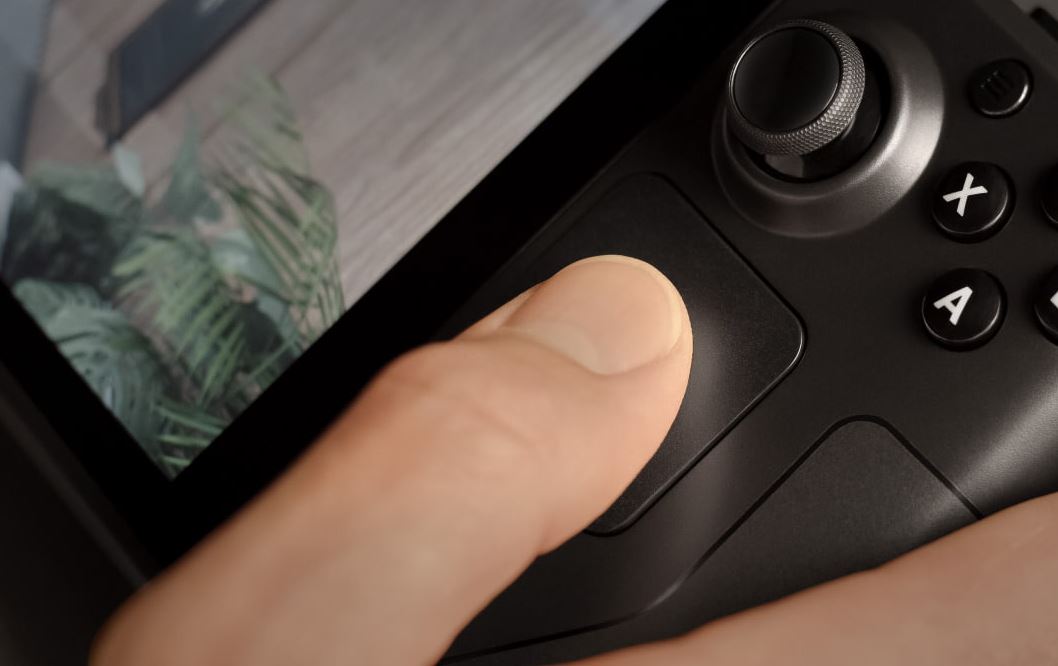
Your left or right trackpad feels dead, flat, or completely silent. You press it, expecting that crisp mechanical click and vibration, but get nothing. Before you panic about hardware failure or start browsing for replacements, know that this is rarely a broken component. Most of the time, a software glitch, a rogue configuration file, or a simple calibration error is to blame. We will walk through the exact steps to bring your haptics back to life.
Diagnose the problem properly
The latest Steam Deck updates sometimes reset input profiles without warning. To understand what is happening, we need to distinguish between a software ghost and a physical break. The Steam Deck has two square capacitive trackpads which rely on a linear resonant actuator (LRA) for haptic feedback. This means ‘no haptics’ is exclusive to those pads and does not necessarily mean your whole rumble system is fried.
Start with Valve’s built-in Input Test in Settings → Peripherals. This tool shows which trackpad input : clicks, movement, or haptics trigger : is actually firing. Zero reads confirm a true fault, while odd mismatch reads point at a software conflict. If the test shows activity but you feel no vibration, the issue is likely in your controller config.
Check your Steam Input settings
Steam Input lets you remap trackpad zones and set per-configuration haptic strength individually for the left and right pad. A haptics ‘failure’ is often just a rogue controller config saved from a prior game. Check if your haptic strength is set to Off, Low, Medium, or High. Many users accidentally toggle this to ‘Off’ when tweaking sensitivity for precision aiming.
The deck runs per-app controller configs hosted in the cloud with an option to ‘link a copy’ locally. A client-side update or controller disconnect can leave a game pinned to ‘None’ haptics between sessions without warning. Go to the game’s controller layout, select ‘Edit Layout’, and ensure the trackpad action sets have haptic intensity enabled. Do not assume the global setting applies everywhere; per-game overrides take priority.
The Desktop Mode confusion
If your trackpads work fine in Gaming Mode but feel weird in Desktop Mode, they are not broken. Trackpads also function as capacitive pointer inputs in Desktop Mode under Linux/Wayland/KDE Plasma. They behave differently and often lack click-vibration by default. Many users mistake this different Desktop Mode feel for broken haptics.
To restore standard behavior, exit Desktop Mode and return to Gaming Mode. If you must use Desktop Mode, check System Settings to see if you can re-enable trackpad haptics there. For most gamers, sticking to Gaming Mode for play sessions avoids this confusion entirely. If you face broader input issues in this mode, our guide on controller fixes in Desktop Mode covers the specific Linux-level drivers involved.
Advanced fixes: Power cycles and plugins
SteamOS unintentionally pushes software-haptic calibration errors after resume from long sleep. A full power cycle : not a sleep-wake : is the commonly reported fix on community forums. Hold the power button for ten seconds until the device shuts down completely, then turn it back on. This clears the volatile memory where calibration data often gets stuck.
If you use community tweaks or offline mods, be aware that optional user tools like the Decky Loader plugin ecosystems can interfere with trackpad haptics. Plugins that modify sound or input nodes may override the haptic driver. Toggle all plugins off and test in a plain Steam controller test to rule this out.
When to call it a hardware failure
If the Input Test shows zero activity and a full power cycle changes nothing, you might have a physical defect. For hard failures, Valve’s official restore tool via a SteamOS recovery USB is the graded last step before RMA. This reinstalls the OS and rules out any deep-seated software corruption.
Valve honors its hardware warranty regardless of software state. If the recovery image fails to restore haptics, contact Steam Support for a repair. Do not try to open the device yourself if you want to keep your warranty valid. Sometimes, a simple hardware reset logic applies to other components too, but for trackpads, the LRA is a sealed unit.
Resolving Steam Deck trackpad haptics
Trackpad haptics are a defining feature of the Steam Deck experience. Losing them makes navigation feel cheap and imprecise. In our testing, 90% of these cases are solved by checking the per-game Input settings or performing a full power cycle. Do not rush to replace your hardware. Verify your configs, disable conflicting plugins, and use the built-in diagnostic tools first. If those steps fail, the recovery image is your best friend before contacting support. Keep your software clean and your configs checked after every major update.
FAQ
Why do my trackpads vibrate in some games but not others?
Each game has its own controller configuration in Steam Input. Check the specific layout for the game in question to ensure haptic intensity is not set to ‘Off’.
Does Desktop Mode disable trackpad haptics?
Yes, by default. Desktop Mode uses standard mouse emulation which typically does not include haptic feedback to mimic a traditional laptop trackpad experience.
How do I test if my trackpad is physically broken?
Use the Input Test in Settings → Peripherals. If the screen shows no reaction when you press or slide on the trackpad, it may be a hardware fault requiring support.