

 Saburo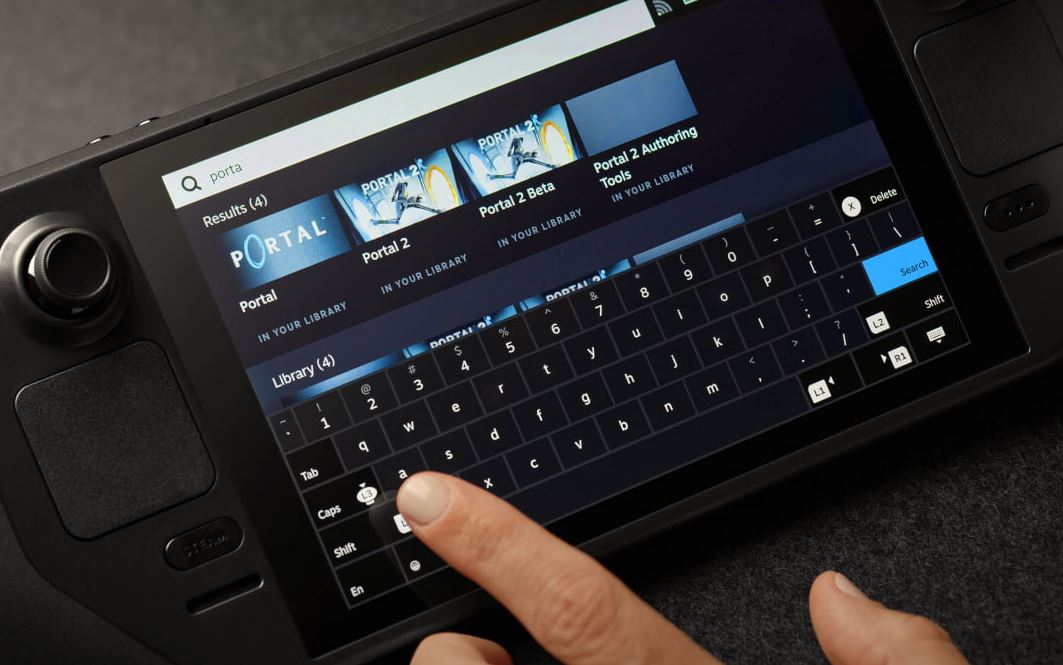
Switching to Desktop Mode transforms your Steam Deck into a legitimate handheld PC, but it also strips away the safety net of Steam Input. If your trackpads, touchscreen, or physical buttons suddenly stop responding the moment you leave Gaming Mode, you are not dealing with a hardware failure. The issue stems from how Linux handles input drivers differently than SteamOS does in game mode.
Why Controls Fail in Desktop Mode
The root cause is almost always a driver handoff error. In Gaming Mode, Valve’s custom Steam Input layer manages every press and swipe. Once you switch to Desktop Mode, the system hands control over to standard Linux input drivers, specifically libinput. This transition means any custom controller layouts you built for specific games vanish instantly. The OS no longer recognizes your inputs as “gamepad commands” but as raw mouse or keyboard events, which can lead to total unresponsiveness if the mapping gets stuck.
This distinction matters because fixing it requires Linux-level troubleshooting, not just restarting a game. You are essentially debugging a KDE Plasma environment now, not a console interface.
Check for Input Focus Traps
The most frequent culprit is the on-screen keyboard. If the virtual keyboard overlay fails to close properly, it captures all input focus. Your physical buttons still send signals, but the OS directs them to a hidden text field instead of your active window. Closing the on-screen keyboard manually via the taskbar or using a paired Bluetooth keyboard to dismiss it usually restores immediate control to the physical inputs, as noted in community troubleshooting guides.
Step-by-Step Fixes for Unresponsive Inputs
Before diving into complex terminal commands, try these high-impact solutions that resolve the majority of driver conflicts.
1. Update SteamOS System Software
Valve frequently patches the kernel and input stack in both Stable and Preview channels. An outdated build might lack the latest libinput quirks needed for newer peripheral interactions. Navigate to Settings > System > Software Updates and ensure you are running the latest version. Updating can reset broken input configurations without wiping your personal data, as detailed in recent SteamOS update notes.
2. Isolate Bluetooth Interference
If you use external peripherals, they might be hijacking the input path. Some Bluetooth keyboards or mice conflict with the internal controller mapping when Desktop Mode initializes. Unpair all third-party accessories temporarily. If your built-in controls start working again, re-pair devices one by one to identify the offender. Valve’s support documentation highlights that active Bluetooth connections can disrupt internal mapping during this mode switch.
3. Verify KDE Plasma Settings
Since the update to KDE Plasma 6, some input settings have shifted. Check your System Settings under Input Devices. Ensure that the touchscreen and trackpads are enabled and not set to a “disabled” state by a previous session’s configuration profile.
Using External Peripherals Effectively
If built-in controls remain unreliable, consider embracing a true desktop setup. Docking your Steam Deck allows you to use a standard mouse and keyboard, bypassing the handheld input layer entirely. This is particularly useful for productivity tasks or non-Steam emulators that struggle with gamepad emulation. Choosing the right dock ensures stable power delivery and reliable USB-C data paths for your peripherals, which is critical for maintaining consistent input registration.
For users who frequently switch between gaming and desktop workflows, investing in a reliable docking station simplifies the transition. It removes the need to troubleshoot handheld inputs entirely during desktop sessions.
Troubleshooting the Steam Input Handoff
Input failures in Desktop Mode are frustrating but predictable. They are not signs of a dying device but rather symptoms of a hybrid operating system juggling two distinct input philosophies. While Valve has improved stability significantly with Plasma 6, the handoff between Steam Input and libinput remains a delicate process. We recommend keeping a small Bluetooth keyboard handy for emergencies. It serves as both a productivity tool and a rescue key when the touchscreen decides to ignore you. Ultimately, treating Desktop Mode as a separate Linux environment rather than an extension of Gaming Mode will save you hours of troubleshooting.
FAQ
Why do my custom controller layouts not work in Desktop Mode?
Custom layouts are part of the Steam Input layer, which only runs in Gaming Mode. Desktop Mode uses standard Linux drivers (libinput) that do not recognize these Steam-specific profiles.
How do I fix a frozen screen in Desktop Mode?
Try pressing the Steam button + X to take a screenshot, which can sometimes reset the display compositor. If that fails, hold the power button for 10 seconds to force a hard reboot.
Can I use my Steam Deck controller in Desktop Mode for navigation?
Yes, the trackpads should act as mouse pointers and the right trigger as a left-click. If they don’t, check if the on-screen keyboard is open and capturing focus.