

 Saburo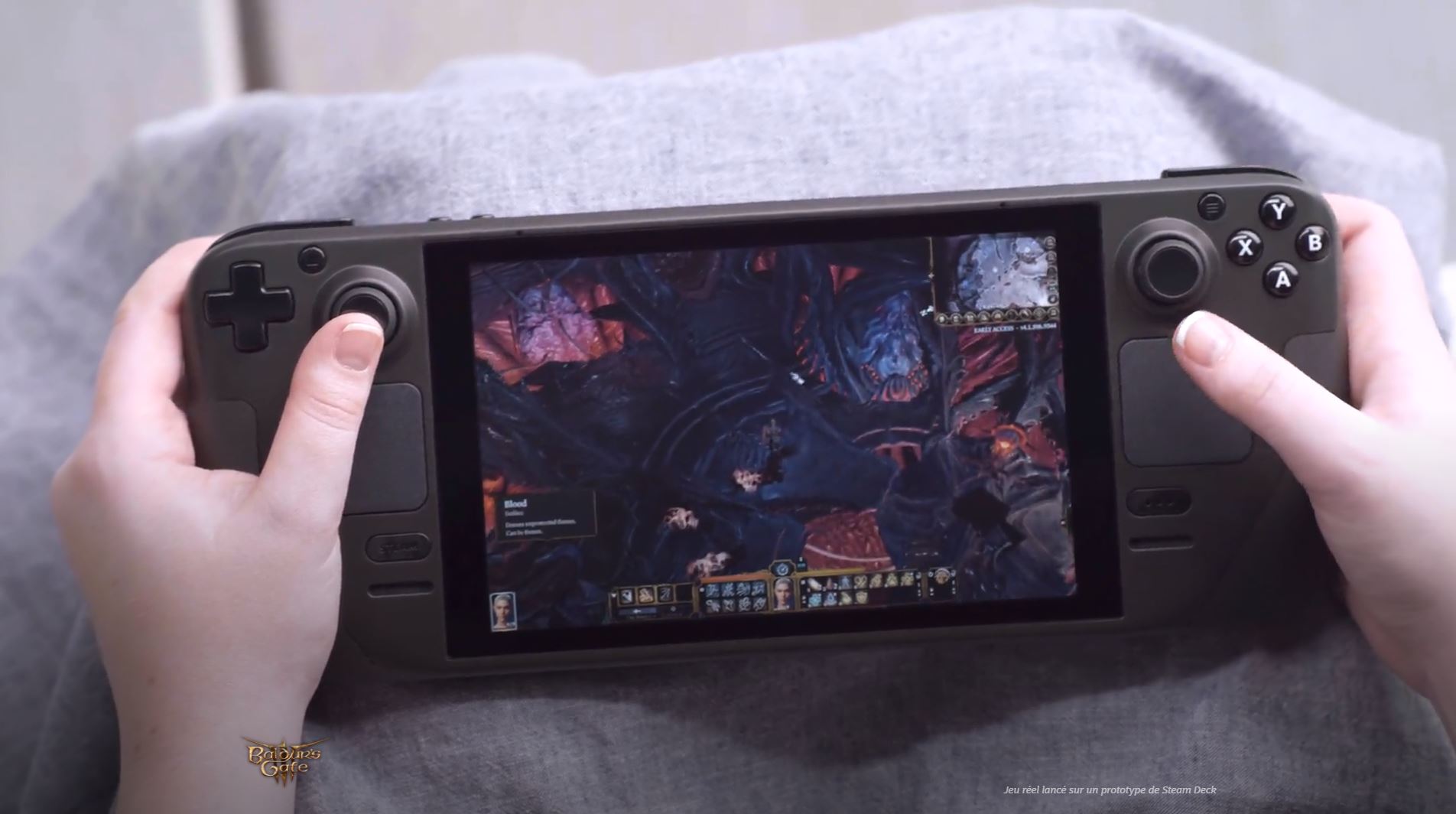
(yeah, I did not bother taking a photo of my Steam Deck with a SD Card. You know how it looks like, right ?)
If your Steam Deck suddenly stops seeing your microSD card, the fix is almost always one of four things: a dirty or loose card slot, a card formatted the wrong way, a firmware hiccup, or a card that’s straight up dying. Work through them in that order and you’ll usually know exactly what’s wrong within ten minutes, without wiping anything you didn’t need to.
First, Rule Out the Obvious Stuff
Before you touch any settings, do the boring checks. Power off the Deck completely (not sleep, a full shutdown), pop the card out, and look at the gold contacts. Dust and pocket lint build up in that slot faster than you’d think, especially if you carry your Deck without a case. Give the contacts a gentle wipe with a dry microfiber cloth, no alcohol, no compressed air blasted directly into the slot.
While it’s out, try the card in a different device: a phone, a laptop’s SD reader, anything. If it doesn’t show up anywhere else either, skip ahead to the “card is dying” section below, no point troubleshooting the Deck for a card problem.
Reseat It Properly
This sounds too simple to matter, but it’s the fix that solves this more often than anything else on the list. Push the card in until you hear the click, then push again gently to make sure it’s actually seated and not just resting against the spring. A card that’s slightly out of alignment will often still show visually like it’s inserted while the contacts aren’t fully touching.
This is the same “don’t assume the worst before checking the basics” logic that applies to a lot of Deck quirks, our joystick drift troubleshooting guide starts the same way. Boot the Deck back up in Desktop Mode rather than Gaming Mode for this check. Desktop Mode gives you a proper file manager where you can see if the card mounts at all, which is more reliable than waiting for the Gaming Mode UI to notice it.
Check the Format
SteamOS wants your card formatted as ext4 if you’re using it to install games directly, or exFAT if you’re just moving files around. A card formatted as FAT32 from an old camera or a Windows machine will often get partially recognized: the Deck sees a card is present but can’t do anything useful with it. Open the Steam Deck’s Settings, go to System, and use the built-in “Format SD Card” option rather than formatting it from a PC. This bakes in the exact filesystem structure SteamOS expects.
Heads up: formatting wipes the card completely. If you’ve already got games or files on it that you care about, back them up to a PC first, even if the card is acting flaky. A card that’s half-recognized can usually still be read for a quick backup; one that’s fully dead can’t.
Update SteamOS Before You Assume the Card Is Broken
I’ve lost count of how many times a “dead” SD card turned out to be a SteamOS bug that got patched two updates later. Go to Settings > System > Software Updates and check you’re on the latest stable branch, not stuck a few versions behind. Valve has quietly fixed SD card detection issues in past updates without making a big deal of it in the patch notes, so this step is worth doing even if your Deck seems otherwise up to date.
If you’re on the Preview channel and having card issues, that’s your answer: switch back to Stable. Preview builds are exactly where this kind of hardware quirk shows up first, similar to how some of the fixes in our Steam Deck won’t charge guide turned out to be firmware-related rather than a hardware fault.
When It’s Actually the Card, Not the Deck
MicroSD cards wear out, especially cheap ones running constant read/write cycles from game installs and Steam’s shader cache. Signs you’re dealing with a dying card rather than a Deck problem: it worked fine last week and now doesn’t at all, it’s detected sometimes but drops out randomly, or file transfers to it corrupt or hang partway through.
If that’s what you’re seeing, don’t bother troubleshooting further. Grab a replacement from a brand actually rated for the sustained read/write load a Steam Deck puts out, not just whatever’s cheapest. It’s the same logic behind picking the right gear generally: cutting corners on storage costs you more in lost saves and reinstall time than it saves on the purchase.
FAQ
Can a bad SD card damage my Steam Deck?
No, a failing card won’t harm the hardware itself, it’ll just fail to read or write properly. Worst case is corrupted files on the card, not damage to the Deck.
Why does my card work in Desktop Mode but not Gaming Mode?
This usually points to a formatting mismatch. Gaming Mode expects the ext4 structure SteamOS uses for game libraries, while Desktop Mode’s file manager can read other formats like exFAT just fine.
Is it safe to format the card using a Windows PC instead of the Deck itself?
You can, but stick to exFAT if you do, and expect to reformat again through the Deck’s own System settings if you want to install games directly to it.
How often should I replace my Steam Deck’s SD card?
There’s no fixed schedule, but if you’re installing and deleting games regularly on a budget card, expect a few years of heavy use before wear starts showing. A higher-endurance card built for sustained writes will outlast a cheap one considerably.
Bottom Line
Work the list in order: clean and reseat the card, check the format, update SteamOS, then suspect the card itself. Nine times out of ten it’s the reseat or the format, not a dead card or a broken slot. Do the cheap checks first before you spend money on a replacement you might not need.