

 Saburo
Plugged in, LED blinking, battery percentage not moving an inch. If your Steam Deck refuses to charge (or charges so slowly it feels like it’s losing the race against your play sessions), don’t panic and don’t order a replacement battery yet. Nine times out of ten this is a cable, port, or software problem, not a dead unit. I’ve walked three different Decks through this exact panic (mine included, RIP that one cheap cable), so here’s the actual order to check things in.
1. Rule out the cable and charger first
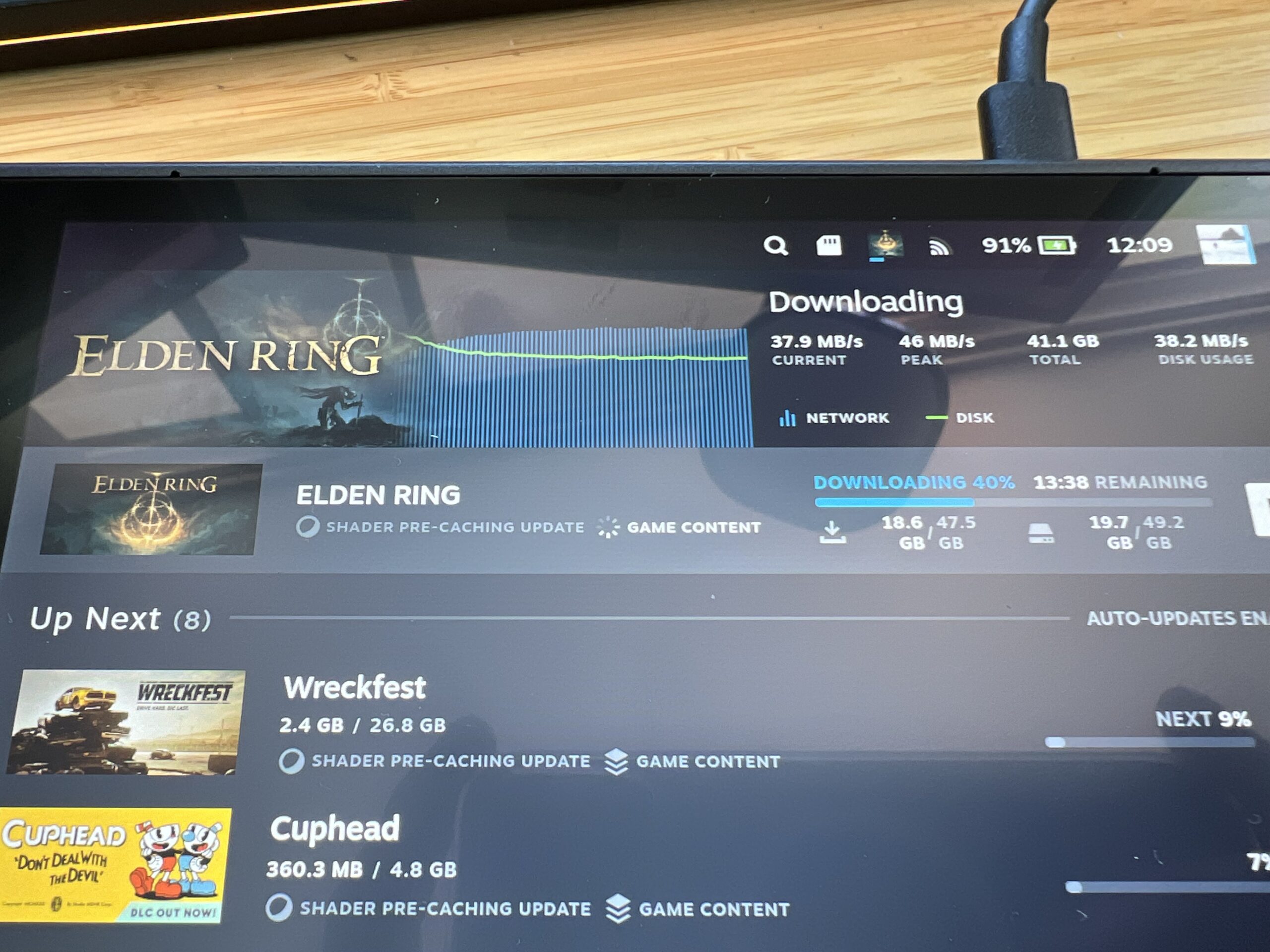
This is the fix that solves it more often than anything else on this list, and it’s the one people skip because “the cable looks fine.” The Steam Deck needs a real USB-C Power Delivery charger, rated at 45W, to charge at full speed. Plug it into a random 10W phone brick or a cheap no-name cable and you’ll get a “slow charging” icon at best, or nothing at all if the cable is charge-only with no data/power negotiation lines wired properly. SteamDeckHQ has a running list of PD chargers people have confirmed work reliably, worth a check before you buy a replacement brick.
- Try the original Valve brick and cable if you still have them.
- If you’re using a third-party cable, swap it for a known-good one rated for 60W+ / 3A.
- Try a different wall outlet or power strip, just to rule out a dead socket.
If the Deck suddenly charges fine with a different cable, congrats, you just saved yourself a repair ticket.
2. Check the USB-C port for debris
Pocket lint and dust love USB-C ports, and the Deck’s port sits right where your hands rest. A partially blocked port can prevent the connector from seating fully, which breaks the power negotiation before it even starts. Power the Deck off, grab a flashlight, and look straight into the port. If you see fuzz, use a wooden toothpick (never metal) or a can of compressed air to clear it out gently. Don’t jam anything conductive in there.
3. Force a restart before you assume the worst
Sometimes the charging IC just gets stuck in a weird state, especially after the Deck went into deep sleep with a near-empty battery. Hold the power button for about 10-12 seconds to force a hard shutdown, then plug the charger back in and wait a couple of minutes before pressing power again. I’ve seen a “completely dead” Deck come back to life just from this, no joke.
4. Update SteamOS (if it’ll boot at all)
If your Deck has enough juice to turn on but charging behaves erratically, jumping between “charging” and “not charging” icons, check for a pending SteamOS update. Valve has shipped charging and battery management fixes in past updates, and running an outdated build is a more common culprit than people expect. Go to Settings > System > Software Updates and install anything pending, then reboot.
5. Check your battery health and charge cycles
Batteries degrade. If your Deck is a couple of years old and has seen heavy daily use, a battery that struggles to hold charge (rather than one that flat-out refuses to charge) might just be wearing out. This is a different problem from “not charging at all,” so don’t jump straight to a battery replacement unless steps 1-4 changed nothing. If you’re also seeing rapid battery drain even at idle, that’s worth pairing with a look at your battery and power settings, since a misconfigured TDP limit can mask itself as a charging issue.
6. When it’s a hardware fault worth an RMA
If you’ve swapped the cable, cleared the port, force-restarted, updated SteamOS, and the Deck still shows zero response to any charger, the internal charging port or battery connector is the likely suspect. This is not a solder-it-yourself weekend project unless you’re comfortable opening the unit and voiding your warranty. Check Valve’s official Steam Deck support page for your Deck’s warranty status before you touch a screwdriver: a same-day charging failure with no other symptoms is usually covered.
A stuck boot process can sometimes look like a charging failure too (Deck seems dead but is actually just frozen mid-boot), so if you haven’t already, it’s worth ruling that out with my guide on a Deck stuck on the boot logo before you assume it’s the battery.
FAQ
Can I use my Nintendo Switch charger on my Steam Deck?
Only if it’s a genuine USB-C PD charger rated close to 45W. Many Switch chargers are lower wattage and will charge the Deck painfully slowly, if at all.
Why does my Steam Deck charge when off but not when on?
Running a demanding game can pull more power than a weak charger can supply, so the battery drains even while “charging.” Swap to a genuine 45W charger and the issue usually disappears.
Is it safe to keep using the Deck while it’s plugged in?
Yes, that’s normal use, just make sure you’re on a proper PD charger so the Deck isn’t running a power deficit during heavy gameplay.
Bottom line
Before you spiral into RMA paperwork, run through the cable swap and port check first, seriously, that’s where most “dead” Decks turn out to be fine. If you’ve gone through all six steps and you’re still staring at a blank battery icon, stop troubleshooting and open a support ticket with Valve: a genuine charging port failure isn’t something to force your way through with a different cable and hope.