

 Saburo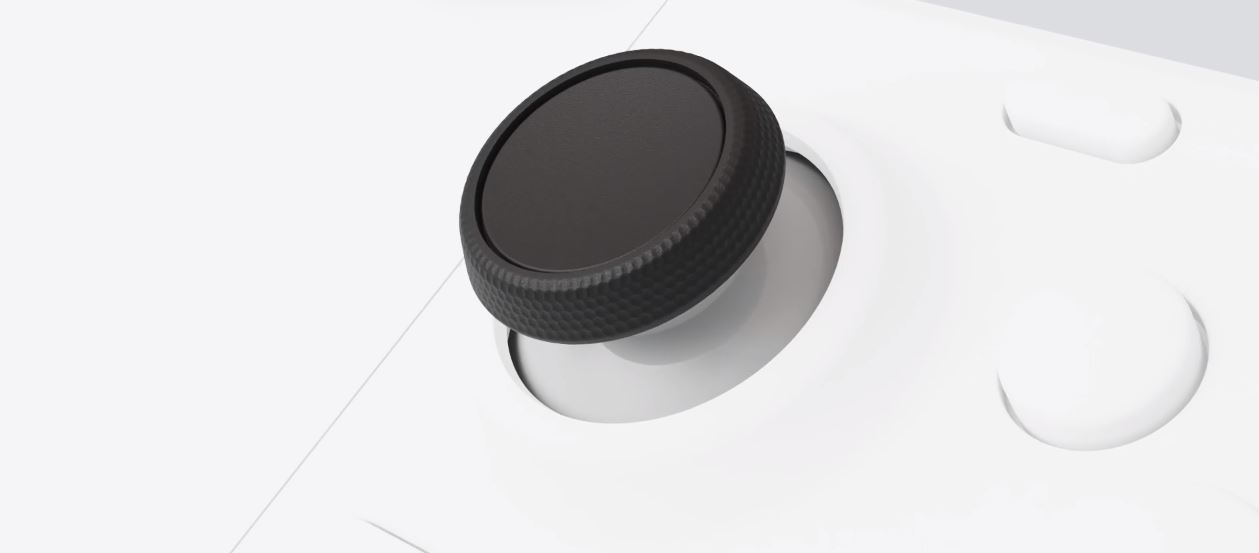
My left stick started drifting into the menu on its own a few weeks back, right in the middle of a Hades run. If your Steam Deck’s thumbstick has developed a mind of its own, here’s what’s actually going on and how to fix it, without immediately jumping to “I need a new Deck.”
What’s actually causing the drift
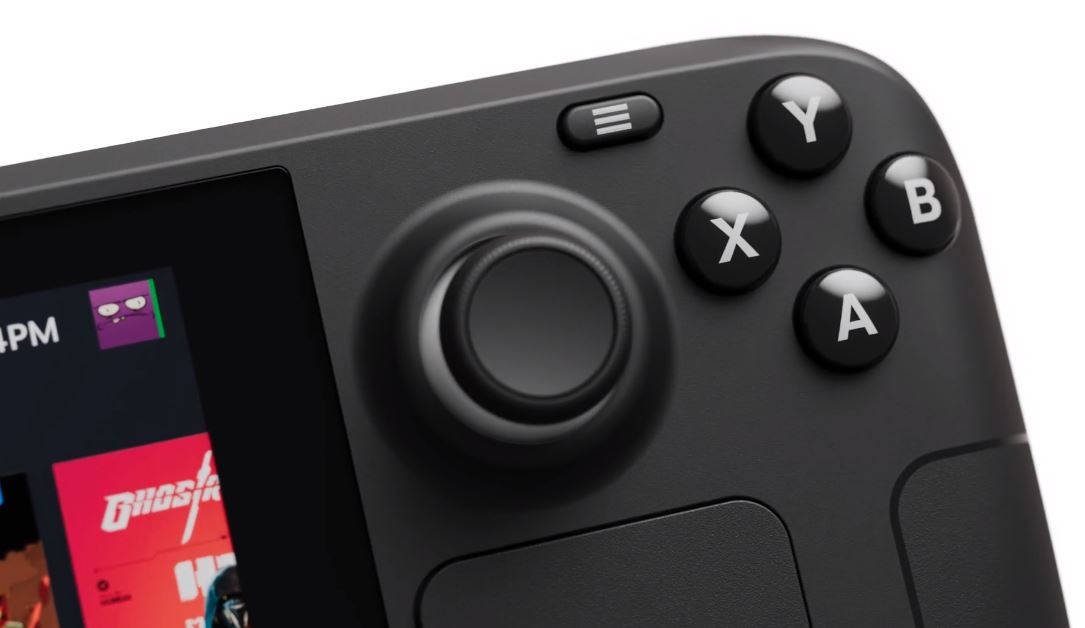
Joystick drift on the Deck usually comes down to one of three things. The most common culprit is dirt or dust that’s worked its way into the stick housing over months of use, especially if you’re the type to game on the couch with snacks nearby (no judgment, we’ve all been there). The second is potentiometer wear: the little component that tracks the stick’s position slowly loses precision, so its “resting point” drifts away from true center. The third, and the one people overlook, is a deadzone calibration bug that some firmware updates have introduced, which isn’t a hardware problem at all.
Knowing which one you’re dealing with matters, because the fix is completely different depending on the cause. Chasing a hardware repair for a software calibration issue is a waste of an afternoon.
Step 1: Adjust the deadzone first
Before you open anything up, try this. Go to Settings, then Controller, and pull up the stick’s advanced settings. Increasing the deadzone slider raises the threshold the stick needs to cross before input registers, which papers over minor drift without touching the hardware. In my experience this alone clears up the majority of “my stick is twitchy” complaints. It’s not a real fix for worn hardware, but it’s the fastest way to confirm whether you’re even dealing with a physical problem.
Step 2: Recalibrate the stick
If the deadzone tweak doesn’t fully solve it, recalibrate. Head to Settings, Controller, then Calibration, and follow the on-screen prompts to reset the stored center point. If you’re comfortable in Desktop Mode, you can also run the thumbstick_cal utility from a Konsole terminal, which gives you a bit more visibility into what’s happening under the hood. Recalibration is especially worth doing after a SteamOS update, since that’s exactly the scenario where a calibration bug tends to sneak in.
Step 3: Clean the stick
Still drifting after calibration? It’s probably physical debris. A can of compressed air aimed at the base of the stick, where the cap meets the shell, can dislodge sand or dust without any disassembly. If that doesn’t cut it, opening the Deck and applying a contact cleaner directly to the potentiometer is the next step up. It’s more involved, but it’s still cheaper and faster than a repair ticket, and the Deck’s shell isn’t nearly as intimidating to open as people assume.
Step 4: Replace the stick module
If cleaning and calibration both fail, the potentiometer itself has likely worn out, and no amount of software tweaking is going to fix that. The good news: Valve mounted the thumbsticks on their own modular board, so swapping them is far less painful than most handheld repairs. While you’re in there, it’s worth considering an upgrade to Hall Effect sticks, which use magnets instead of physical contact points and are essentially immune to the wear that causes drift in the first place. It’s the kind of fix you only do once.
FAQ
Does the deadzone fix actually solve drift, or just hide it?
It hides it. Raising the deadzone stops small unwanted movements from registering, but the underlying wear or debris is still there. It’s a fine workaround if the drift is minor, but it won’t help if the stick is badly worn.
Is joystick drift covered under warranty?
If your Deck is still within its warranty window and the drift isn’t caused by obvious physical damage, it’s worth reaching out to Valve support before opening the unit yourself, since disassembly can affect your coverage.
Do Hall Effect sticks really last longer?
Yes. Since they read stick position magnetically instead of through physical contact, there’s no surface to wear down over time, which is exactly the mechanism that causes drift on stock potentiometer sticks.
Start with the deadzone, work your way up
Don’t open your Deck the moment a stick starts acting up. Run through the deadzone tweak and a recalibration first, they take five minutes combined and solve most cases outright. If you’re still fighting drift after that, compressed air and a contact cleaner will get you most of the rest of the way. Save the Hall Effect swap for when you know you’re dealing with genuine hardware wear, that’s the fix that actually makes the problem stop coming back.
If you have to replace the thumbstick, you can follow the very detailed tutorial by IFixit here.