

 Saburo
HDR on the Steam Deck OLED looks stunning, but it murders your battery life. The display pushes peak brightness up to 1000 nits in small areas, a massive jump from the LCD model’s standard SDR output. This intensity drains power fast. You can keep the visual pop without tethering yourself to a wall outlet by tweaking specific settings and using community tools.
The Real Cost of HDR on Steam Deck
High Dynamic Range isn’t just a software filter. It demands physical energy. HDR content requires significantly more power from the display panel due to increased backlight intensity and pixel activation. Even if you lower the global brightness slider, the localized peaks needed for true HDR still pull more juice than SDR at equivalent perceived brightness levels.
Many users report losing an hour or more of playtime simply by toggling HDR on in SteamOS. For short sessions, this might not matter. For long RPG grinds or strategy games, it becomes a critical bottleneck. You need a strategy that balances visual fidelity with endurance.
Beware of Fake HDR
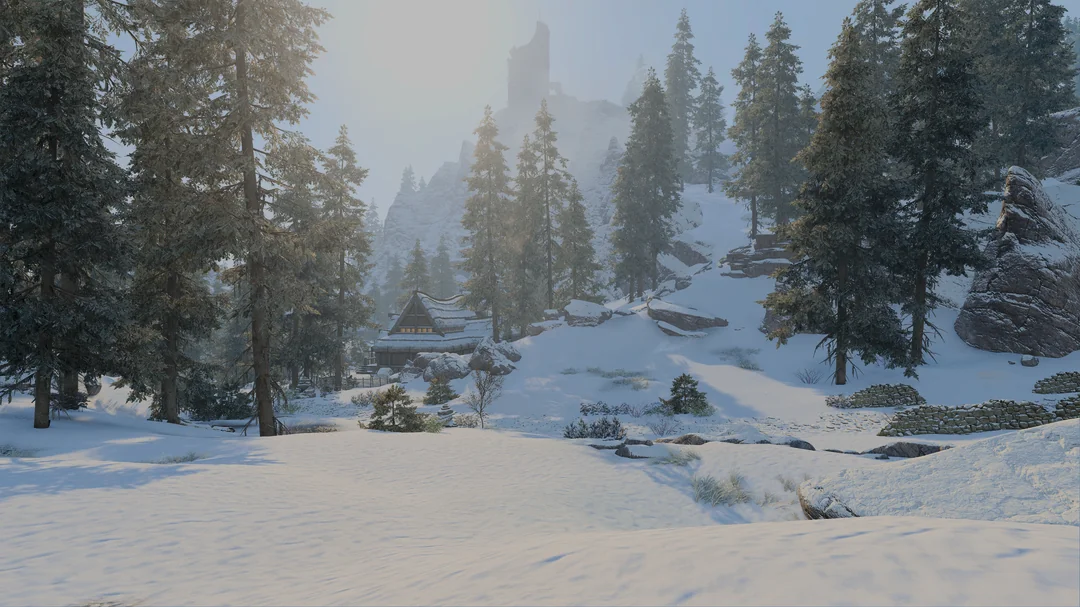
Not all HDR is created equal. On Linux and Proton, implementation varies wildly. Many games do not properly implement HDR, resulting in washed-out colors that still incur the full power penalty. This “fake HDR” gives you neither the visual benefit nor the battery life. Before tweaking power settings, verify if the game actually supports native HDR on Deck. If the image looks gray or desaturated, turn it off immediately.
How to Keep HDR Without Draining the Battery
You don’t have to choose between beautiful visuals and playable battery life. A targeted workflow helps mitigate the drain while keeping HDR active for supported titles.
Use PowerTools for Per-Game Tuning
The PowerTools plugin is essential for fine-grained control. It allows you to set per-game TDP (Thermal Design Power) limits and clock speeds. By capping the GPU and CPU usage, you offset the extra load from the display’s backlight. This stabilizes battery usage even when HDR is active. Instead of letting the Deck run wide open, you define a power budget that the system respects.
For example, in a visually demanding title like Cyberpunk 2077, you might cap the TDP at 10W. In a lighter indie game with HDR support, 5W might suffice. This manual intervention prevents the hardware from drawing maximum power unnecessarily.
Optimize Global Settings
Beyond per-game tweaks, adjust your global SteamOS settings. Lowering the global brightness ceiling helps, but avoid going too low, as it defeats the purpose of HDR. Instead, focus on frame rate caps. Running HDR at 30 FPS instead of 60 FPS cuts GPU load significantly, freeing up power for the display. Check our guide on optimizing graphics and battery for more detailed configuration tips.
If you struggle with specific titles, consult our breakdown of settings that actually work to extend playtime. These adjustments compound, giving you those extra minutes that matter during long sessions.
HDR Worth the Trade-Off?
HDR on the Steam Deck OLED is a luxury, not a necessity. For competitive shooters or fast-paced action, the battery cost often outweighs the visual gain. Stick to SDR for these genres. However, for slow-burn narrative games or visually rich explorers, HDR transforms the experience. Use PowerTools to manage the cost. If you frequently game away from home, consider carrying one of the best portable power solutions to compensate for the extra draw. Smart tuning lets you enjoy both worlds.
FAQ
Does HDR work on the Steam Deck LCD?
No. The LCD model lacks the hardware capabilities for native HDR. Any HDR effect on LCD is simulated via software and often results in poor color accuracy without true brightness peaks.
How do I check if a game has real HDR on Proton?
Look for vibrant whites and deep blacks. If the image appears washed out or gray, the game likely has poor Proton HDR implementation. Disable it in the game’s video settings or SteamOS quick access menu.
Can I disable HDR globally?
Yes. Go to Settings > Display in SteamOS and toggle off HDR. This is the most effective way to save battery if you rarely use HDR-compatible titles.