

 Saburo
In short:
- Intermittent dropouts usually stem from dirty contacts, thermal expansion, or filesystem corruption rather than a dead card.
- Always test your microSD card on a PC with h2testw or f3 before assuming the internal reader has failed.
- Use A2-rated UHS-I cards formatted directly in SteamOS to prevent IOPS-related timeouts during gameplay.
Your Steam Deck mounts the microSD card perfectly at boot, but ten minutes into a download or right in the middle of a boss fight, the storage vanishes. This intermittent dropout points to physical contact wear, filesystem corruption from unsafe ejections, or SteamOS remount quirks rather than a completely dead card. Here is how you isolate the exact culprit and get your game library back online without blindly buying new hardware.
Triage Your Symptom First
Not every missing SD card stems from the same failure. Pinpointing exactly when the disconnect happens saves you hours of guessing. A card that never shows up at boot usually means it needs formatting or has suffered total controller failure, as Asurion’s troubleshooting guide notes. But a card that works for a while and then drops out tells a different story.
| Symptom | Likely Cause | First Step |
|---|---|---|
| Invisible at boot | Unformatted, incompatible filesystem, dead card | Format via SteamOS settings |
| Drops mid-game or mid-download | Worn reader contacts, thermal expansion, exFAT corruption | Clean slot, test card in PC |
| Drops only in Desktop Mode | Power management bug, driver conflict | Check dmesg logs |
| Disconnects/reconnects every ~30 seconds | Hardware reader fault or SteamOS MMC bus issue | Test with external USB reader |
A user on GitHub documented a SanDisk Ultra 200GB card formatted in ext4 disconnecting and reconnecting every 27 to 30 seconds on a device running SteamOS; plugging that exact same card into an external Transcend USB 3.0 reader eliminated the dropouts entirely, proving the internal reader was at fault (GitHub issue #2378). That specific isolation trick is your best friend here.
The Physical Suspects: Contacts, Lint, and Heat
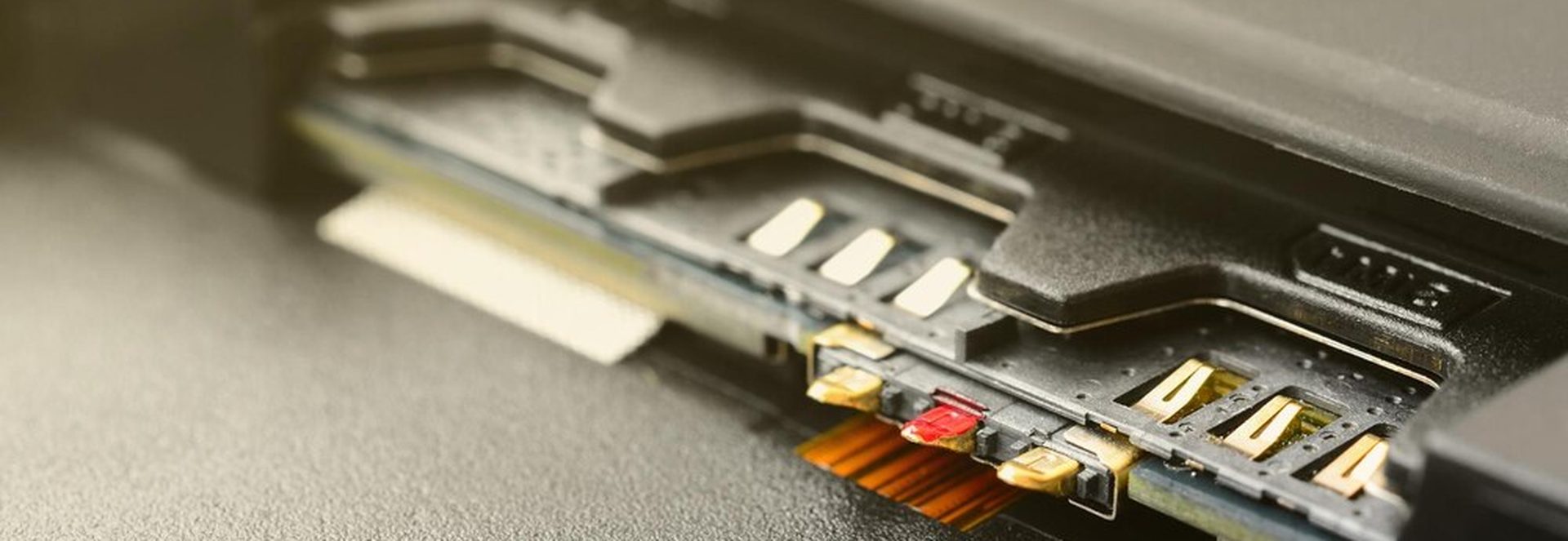
The Steam Deck uses a spring-loaded push-to-eject microSD reader. The card seats with a click and sits flush against the bottom edge of the shell. Because it sits flush, pocket lint, dust, and repeated swaps easily interfere with those tiny gold pins. Even a microscopic layer of grime causes enough resistance to trigger a momentary disconnect when the Deck heats up and components expand slightly during gameplay.
Turn off your Deck completely before touching the slot. Use a wooden toothpick or compressed air to gently clear the cavity. Avoid metal tools: scraping the soldered contacts turns a five-minute cleaning job into a permanent hardware failure. Once clean, reseat the card until you feel that definitive click. If the dropouts stop, dust was your enemy all along.
Heat plays a sneaky role too. Games pushing the APU hard generate warmth that transfers to the bottom edge where the slot lives. Thermal expansion can briefly break contact on a worn pin. If your disconnects only happen during graphically intense games and never while browsing menus or playing 2D indies, suspect thermal flex in the reader.
Filesystem Corruption and the Unsafe Ejection Trap
SteamOS formats microSD cards for game storage as ext4 by default. Cards formatted on Windows typically arrive as exFAT. Both work on the Deck, but they handle sudden power loss very differently. Yanking a card while the system writes data corrupts exFAT directory structures far more aggressively than ext4 journaling does.
If you previously pulled your card out without using the safe eject option in SteamOS settings, you might have corrupted the filesystem index. The OS sees the card, tries to read a damaged block during gameplay, panics, and unmounts the drive to protect itself. Switch to Desktop Mode to run repairs.
SteamOS Desktop Mode runs a full KDE Plasma session on Arch Linux, giving you access to standard terminal tools like lsblk, dmesg, fsck, and smartctl. Opening a Konsole window and typing dmesg | grep mmc immediately after a dropout reveals whether the kernel saw the card physically vanish from the MMC bus or if a software I/O error forced the unmount.
On the community side, players frequently report these vanishing acts after updates. In one Reddit thread, a user noted their SD card disconnected every time they restarted their Deck following a system update, forcing them to pop the card in and out on every single boot just to get it recognized again (r/SteamDeck discussion). Software bugs interacting with filesystem states cause these headaches more often than actual hardware death.
The Isolation Test: Dying Card vs. Dying Reader
You need to prove which component failed before spending money or opening a support ticket. Follow this exact sequence.
- Reseat and clean the slot as described above.
- Take the suspect microSD card and plug it into a PC. Run h2testw on Windows or f3 on Linux. These free utilities write data across the entire capacity of the flash memory and read it back. A failing card often presents as intermittent rather than totally dead, mounting fine for minutes before dropping out under load. These tools expose worn blocks or counterfeit capacities that a quick format misses.
- Insert a known-good, freshly formatted A2-rated card into your Steam Deck. Play a game installed on it for thirty minutes.
- If the old card fails the PC test, buy a new one. If the known-good card also drops out of your Deck, your internal reader is dying.
This matters because the Steam Deck’s card reader is soldered directly to the mainboard. It is not a user-serviceable part. Valve’s official repair path for a failed reader requires an RMA. Ruling out the card first prevents you from shipping your console away for a problem a twenty-dollar piece of flash memory could have solved.
Picking the Right Replacement Card
If your card failed the stress test, replacing it with another cheap generic model guarantees the cycle repeats. The community-standard recommendation for the Steam Deck is an A2-rated UHS-I card. Look at models like the SanDisk Extreme, Samsung EVO Select, or Lexar Play. The A2 specification dictates minimum random read/write IOPS. Cheap cards lacking this rating stall under the random asset loading patterns modern games demand, causing timeouts that look exactly like hardware disconnects to the operating system.
Always format your new card directly through the SteamOS Storage settings page. This interface lets you format the card properly and move installed games between internal storage and the microSD slot. A transfer interrupted by a dropout aborts with an error message rather than silently corrupting both copies, giving you a safety net during setup. Never format a card intended for SteamOS gaming on a Windows machine first unless you specifically need exFAT for dual-booting with Windows.
Our Verdict on Intermittent Dropouts
Intermittent microSD disconnects almost always boil down to dirty contacts or a degraded flash memory controller struggling under thermal load. Stop assuming your Deck is broken the second a game stutters. Clean the slot with compressed air, verify your card’s health with h2testw or f3, and strictly use the safe eject feature in SteamOS before pulling anything out. Buying an A2-rated card from a reputable brand solves nine out of ten of these phantom dropout cases. Only pursue an RMA with Valve once you have proven a known-good card fails in your specific slot.
FAQ
Why does my SD card disappear only in game?
Games generate heavy random read/write operations and significant heat. A card with marginal IOPS performance or a reader with slightly worn contacts handles idle menus fine, but fails under the sustained load and thermal expansion of active gameplay.
Is exFAT or ext4 better on Deck?
ext4 is significantly better for SteamOS game storage. It supports Linux file permissions natively and uses journaling that recovers much more gracefully from unexpected power loss compared to exFAT, which suffers severe directory corruption when yanked unsafely.
Can I fix a bent card reader pin?
No. The microSD reader is soldered directly to the Steam Deck’s mainboard. Attempting to bend pins back risks snapping them or shorting adjacent traces. If physical damage inside the slot is confirmed, you must go through Valve’s RMA process.
Will reformatting erase my saves?
Reformatting wipes all data on the microSD card, including installed games. However, most Steam game saves sync to Steam Cloud or reside on the internal drive. Verify your cloud sync status in Steam settings before formatting.
Should I use A1 or A2 cards?
Always choose A2. The A2 application performance class specifies much higher minimum random read/write IOPS than A1. Modern games constantly stream small assets, and A1 cards frequently timeout under this pressure, triggering false disconnects.