

 Saburo
Nothing’s worse than pressing the power button on your Deck and getting absolutely nothing back. No hum, no LED, no display, no vibration. Before you spiral into RMA panic, walk through this list in order. I’ve bricked-then-unbricked my own Deck more than once, and nine times out of ten it’s not the hardware.
1. Rule out the charger first
A “dead” Steam Deck is very often a dead cable, not a dead Deck. Swap the USB-C cable and, if you have one, the brick too. Plug it into a wall outlet directly, not a USB hub or a laptop port that might not push enough wattage. Leave it charging for a full 30 minutes before trying anything else: a battery drained to absolute zero sometimes needs that long before the Deck even registers input.
Check the charging LED near the USB-C port on the top edge. If it’s lit (even faintly), power is getting in and the problem is elsewhere. If it stays dark after 30 minutes on a cable you know works with another device, move to the next step. And if this whole ordeal started because you let the battery run down to nothing while gaming, my battery life settings guide is worth a read afterward so it doesn’t happen again.
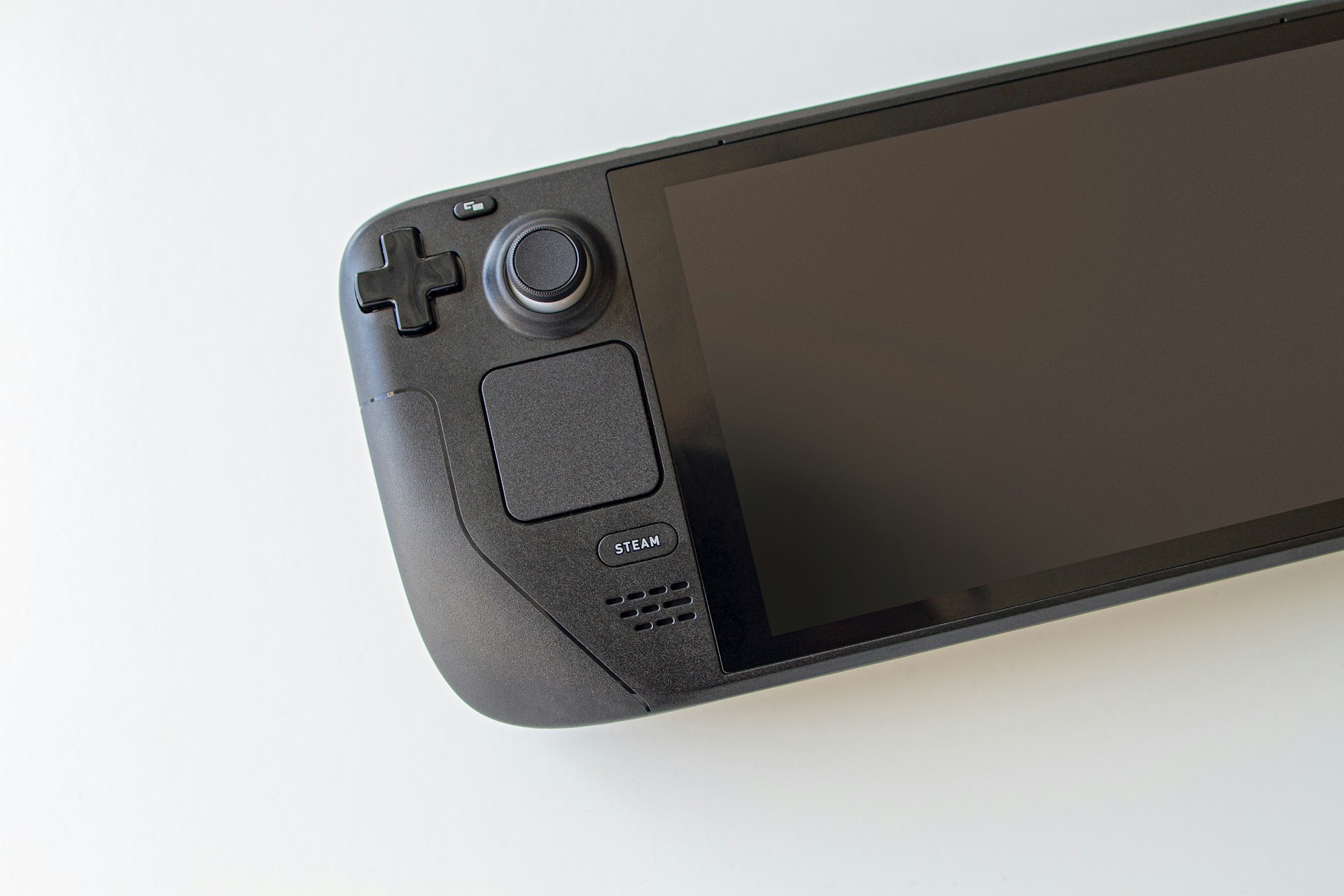
2. Force a restart
This is the step that fixes most “dead” Decks, and it’s different depending on which model you own.
- LCD Steam Deck: hold the power button for about 4 seconds for a basic force reboot. If nothing happens, hold it again for a full 10 seconds.
- OLED Steam Deck: hold the power button for about 7 seconds for a basic force reboot, or 16 seconds for the deeper version.
Yes, the timing genuinely differs between the two models, which trips up a lot of people copying advice meant for the wrong hardware. Release the button as soon as the screen flashes or goes black, then wait a few seconds before pressing it again normally to power on.
3. Check for a stuck power button or shell damage
If your Deck has taken a drop recently, gently press the power button a few times and feel for resistance. A physically stuck button won’t register a proper press-and-release, which the system needs to trigger boot. If the button feels spongy or doesn’t click back, that’s a hardware fault, not a software one, and no amount of button-holding will fix it.
4. Try a different outlet and rule out a fried port
I once spent an evening convinced my Deck had died, when it was actually a wall socket controlled by a light switch that someone had flipped off. Test a completely different outlet, and inspect the USB-C port on the Deck itself for bent pins or visible lint packed inside. A blocked port can prevent charging even with a good cable.
5. Boot into BIOS to confirm it’s not a display issue
Sometimes the Deck is actually turning on, but the screen isn’t. Hold Volume Down + Power at the same time when powering on to try entering the BIOS menu. If you hear the startup chime or see the BIOS screen appear, your Deck is alive and the problem is isolated to the display or SteamOS itself, which is a very different (and usually easier) repair than a fully dead unit.
When it’s time to accept it’s a warranty case
If you’ve tried a known-good cable, force-restarted with the correct timing for your model, checked the button and port, and still get zero response after 30+ minutes on charge, stop troubleshooting and start an RMA. Valve’s own hardware warranty page covers manufacturing defects for a set period after purchase, and the RMA guide walks through exactly what Support needs from you. Don’t crack the shell open trying to reseat the battery yourself unless the warranty has already expired: doing so can void it outright.
If your Deck is out of warranty, a completely dead unit with a confirmed-good charger is most often a battery or motherboard fault, both of which are beyond a weekend fix without a soldering iron and a healthy risk tolerance.
FAQ
Why does the force restart time differ between LCD and OLED models?
The two models use different power delivery chips, so Valve tuned the hold duration separately for each. Using the wrong timing just means you release the button before the reset actually triggers.
My Deck vibrates once but the screen stays black. Is that the same issue?
No, that usually points to a display or backlight fault rather than a fully dead unit. Try the BIOS boot check in step 5 to confirm the Deck itself is running.
Can a bad SD card cause a Steam Deck to not turn on at all?
It’s rare, but a corrupted or physically damaged SD card lodged in the slot has been known to interfere with boot on some units. Remove it and retry a force restart before ruling anything else out.
Start here, not with a support ticket
Before you open an RMA request, run the force restart with the correct timing for your model (step 2) with a cable you’ve confirmed works on another device. That single combination resolves the vast majority of “my Deck is dead” reports I’ve seen. If your unit is stuck on a logo instead of showing nothing at all, that’s a different problem with its own dedicated fix, not this one.