

 Saburo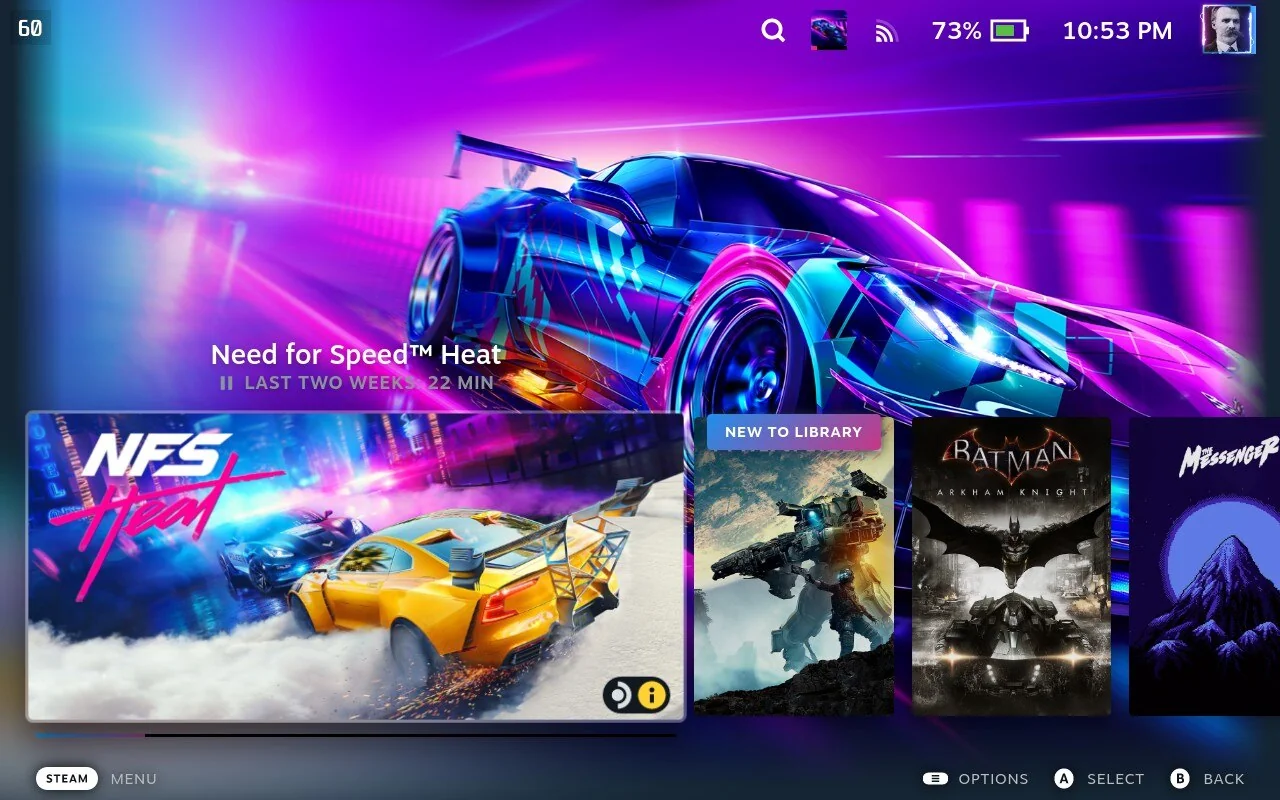
Every Deck looks the same out of the box, and honestly, that gets old fast. If you’ve ever wanted rounded corners on your Gaming Mode UI, a custom boot logo, or just a fresh coat of paint on menus you stare at for hours a day, CSS Loader is the tool. It’s a Decky Loader plugin, fully reversible, and it doesn’t touch anything Valve would consider “modding your firmware.” Here’s how Egor and I set it up.
What CSS Loader actually does
Decky Loader is the base program that runs plugins like PowerTools, and CSS Loader is one of those plugins. It works by injecting React components into the Steam UI and running scripts in the background, which sounds scarier than it is. Nothing gets permanently altered: you can disable or uninstall Decky Loader at any point and Gaming Mode goes right back to stock. Once CSS Loader is running on top of it, you get access to a built-in theme store with community-made skins for rounded corners, custom boot screens, and full UI reskins.
Step 1: Install Decky Loader
- Switch to Desktop Mode (hold the power button, select Switch to Desktop).
- Open the Discover store or a browser and grab the Decky Loader installer from its official site.
- Run the installer, then reboot back into Gaming Mode.
- You’ll now see a plug icon on the Quick Access Menu (the … button), that’s Decky.
Step 2: Install the CSS Loader plugin
- Open the Quick Access Menu and select the Decky icon.
- Go to the plugin store tab and search for CSS Loader.
- Install it, no reboot needed this time.
- Back in the QAM, open Decky, then CSS Loader.
Step 3: Browse and apply a theme
- Inside CSS Loader, select “Download Themes” to open the built-in theme store.
- Browse by category (full reskins, boot screens, icon packs, minor tweaks) and preview before applying.
- Tap a theme to install it, then toggle it on from the Settings tab.
- Some themes need a Gaming Mode restart to fully apply, don’t panic if a menu looks half-changed right after install.
Boot screen themes are the easiest way to feel the difference immediately, that’s usually the first thing Saburo installs on a fresh SteamOS reset.
Undoing it if something looks broken
Themes occasionally clash with SteamOS updates, since Valve doesn’t design its UI with reskins in mind. If a menu looks glitchy after a system update, open CSS Loader and toggle the offending theme off, that alone fixes 90% of visual bugs. Worst case, uninstalling Decky Loader entirely from its own QAM panel wipes every plugin and theme, putting you back to a completely stock Gaming Mode with zero side effects.
FAQ
Will CSS Loader void my Steam Deck warranty?
No. Decky Loader and its plugins run in software only, they don’t touch the bootloader or void anything. Valve has been openly tolerant of the Decky ecosystem.
Can a theme break my Deck permanently?
No. Worst case is a glitchy-looking menu, which you fix by disabling the theme or uninstalling Decky Loader entirely.
Do themes slow down Gaming Mode?
Not noticeably. CSS Loader only touches the UI layer, it has zero impact on actual game performance.
Bottom line
Install Decky Loader, grab CSS Loader from its plugin store, and spend ten minutes browsing the theme catalog tonight. It’s fully reversible, doesn’t touch performance, and turns your Deck from “looks like everyone else’s” into something that’s actually yours.