
 Egor
Egor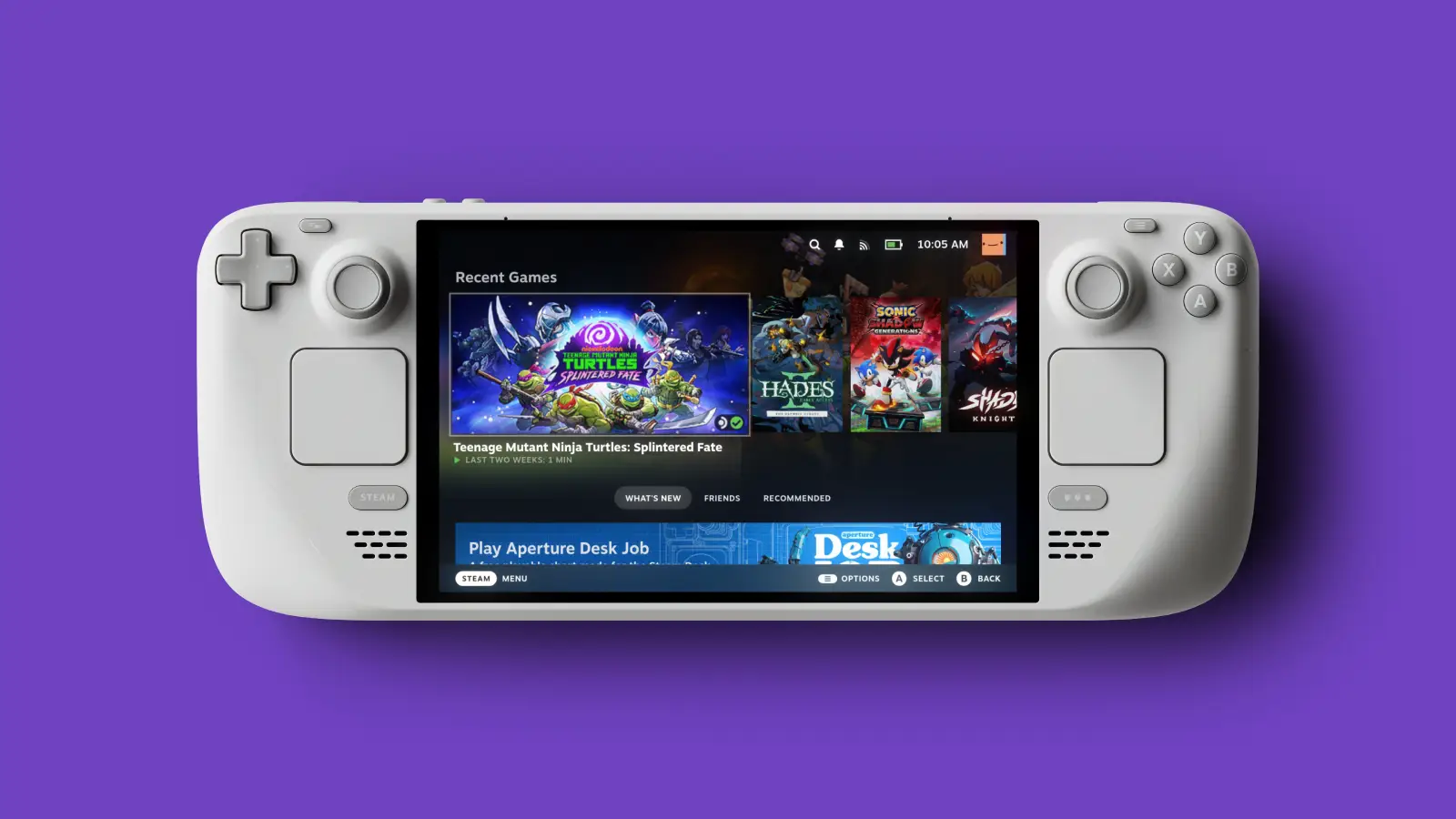
Steam Deck is considered one of the best modern handheld consoles. However, Valve engineers realized that classic consoles were becoming a thing of the past and instead created something which could combine elements from various devices: console, PC, and smartphone for communication with friends. Each type of activity needs its mode and input means; today, we’ll discuss how to enable Desktop Mode in Steam Deck along with on-screen keyboard and mouse support. First, break down common bugs and settings by adding different keyboard languages.
Desktop Mode
This mode makes the console experience more like a PC, with additional options like SteamOS or Linux Desktop. But don’t forget that this console is highly adaptable – Windows 11 can even be installed on it, and it works flawlessly!
If you have any queries about how the console functions, read Valve’s official guide.
Gaming on a console is possible using its game mode, perfect for handheld gameplay. But sometimes you might need to use it like a PC; that is when the Linux desktop was created – working with an onscreen mouse and keyboard and providing more extensive features.
How to Enter Desktop Mode on Steam Deck
Let’s go straight to the main thing, the power-up algorithm:
A power button is at the top, to the right of the Type-C power connector. Press and hold it down;
A pop-up window will appear. Select the penultimate item, “Switch to Desktop.
As you can see, everything is very simple.
How to Exit Desktop Mode on Steam Deck
But how do you get out of Desktop Mode on Steam Deck? First, take a look at your desktop. We advise you not to clutter it with many programs but to separate them into folders. Among them, there is a gray icon with the name “Return.desktop“. Clicking on it will return you to console mode.
You can log out directly from the desktop mode. Find the “Start” icon and select “Log Out”. There are buttons next to it to go to sleep and reboot – the engineers have well-thought-out console functionality, and unnecessary actions are kept to a minimum.
Set Desktop mode On PC
Valve initially created Big Picture mode for navigation in the Steam client through TVs or PCs using gamepads, but this mode is no longer a priority: Deck UI will replace it. Yes, this interface can still be found on the Steam Deck console, though it’s currently still under testing and refining stages, so you can only access it using beta versions of the client.
Users often ask how to properly run Deck UI on their computers on Reddit. We tell you:
- Start using the beta version of Steam. Go to settings, top left “Steam” button, “Account” section.
- Look for “Beta Testing” and click.
- Change from “Refuse” to “Steam Beta Update” and click “OK.” The app will restart;
- Find the Steam icon and go to settings.
- Section “Shortcut” and in the bottom field “Target” add the following value ” -gamepadui” (before “-” must be a space).
- The correct result will look like this: “C:\Program Files (x86)\Steam\Steam.exe” –gamepadui
- Completely close the client, preferably restart your PC and restart Steam.
- To fix it, watch the video, and in method 2, you can also go to this directory by yourself: C:\Program Files (x86)\Steam\package\
- and find the beta file (if you don’t have it, you can create it).
- Open and replace the text with: beta steampal_stable_9a24a2bf68596b860cb6710d9ea307a76c29a04d
When copying, make sure to keep a space between beta and steampal!
- Now repeat point #2 from the list above: specify the path with ” -gamepadui”.
Set Desktop mode on Linux
The procedure is the same, but you have to go to a different directory path:
~/.steam/steam/package
Then it is similar: create file beta, change the content to
beta steampal_stable_9a24a2bf68596b860cb6710d9ea307a76c29a04d
and add ” -gamepadui” to Target.
Turning on the Steam Deck Desktop mode, On TV
You cannot turn on the desktop mode on TV: this platform has no Steam Client. But you can play using Remote Play or run the Steam Link broadcast. Playing on TV is convenient using the Big Picture mode. But by setting up Steam UI on your PC using our guide above, you can use the modern interface on your TV.
Troubleshooting Errors
Let’s look at popular bugs when Desktop Mode on Steam Deck doesn’t work and how to fix them:
First, update the client and restart the console;
We already told you how to install apps using Desktop Mode. If the problem started after installing the program, try to disable it and check if it works, sometimes they are the cause of the malfunction;
Don’t increase shortcuts on the Steam Deck desktop to avoid confusion, and don’t delete the transition shortcut;
If the desktop fails to open because the console is unresponsive, restart the console forcibly. Press the power button for 3 seconds or then for 10 seconds (if the fault is at the operating system level);
“Kill Signal” – if the above described does not help. Go to “System Monitor”, find the Steam client and select “Send Signal” and then “Kill” in the options. This will fix the problem and end the processes. When restarting Steam, it should work fine.
There is no official solution to this problem. Instead, try different options and pay attention to third-party applications blocking some device functions.
Useful Tips
Let’s look at the output input options for the console.
Steam Deck Desktop Mode Shortcuts
Yes, by using keyboard shortcuts, you can speed up and simplify the use of your console considerably. To see a list of all the combinations, learn this table.
On-Screen Keyboard
How can I use the keyboard in Desktop Mode on Steam Deck? You can still access your console using STEAM + X (when running) despite not having a mouse and keyboard. This brings up an onscreen keyboard for typing on the spot.
Important! You can change the layout language – watch a short video tutorial.
Video Guide
This article explored enabling and configuring desktop mode display in Steam Deck. Additionally, it’s helpful to become familiar with Steam UI on PC across various operating systems and explore hotkeys, on-screen keyboards, and mice for turning your console into a versatile portable gaming device with all of the capabilities of a desktop computer.