 Egor
Egor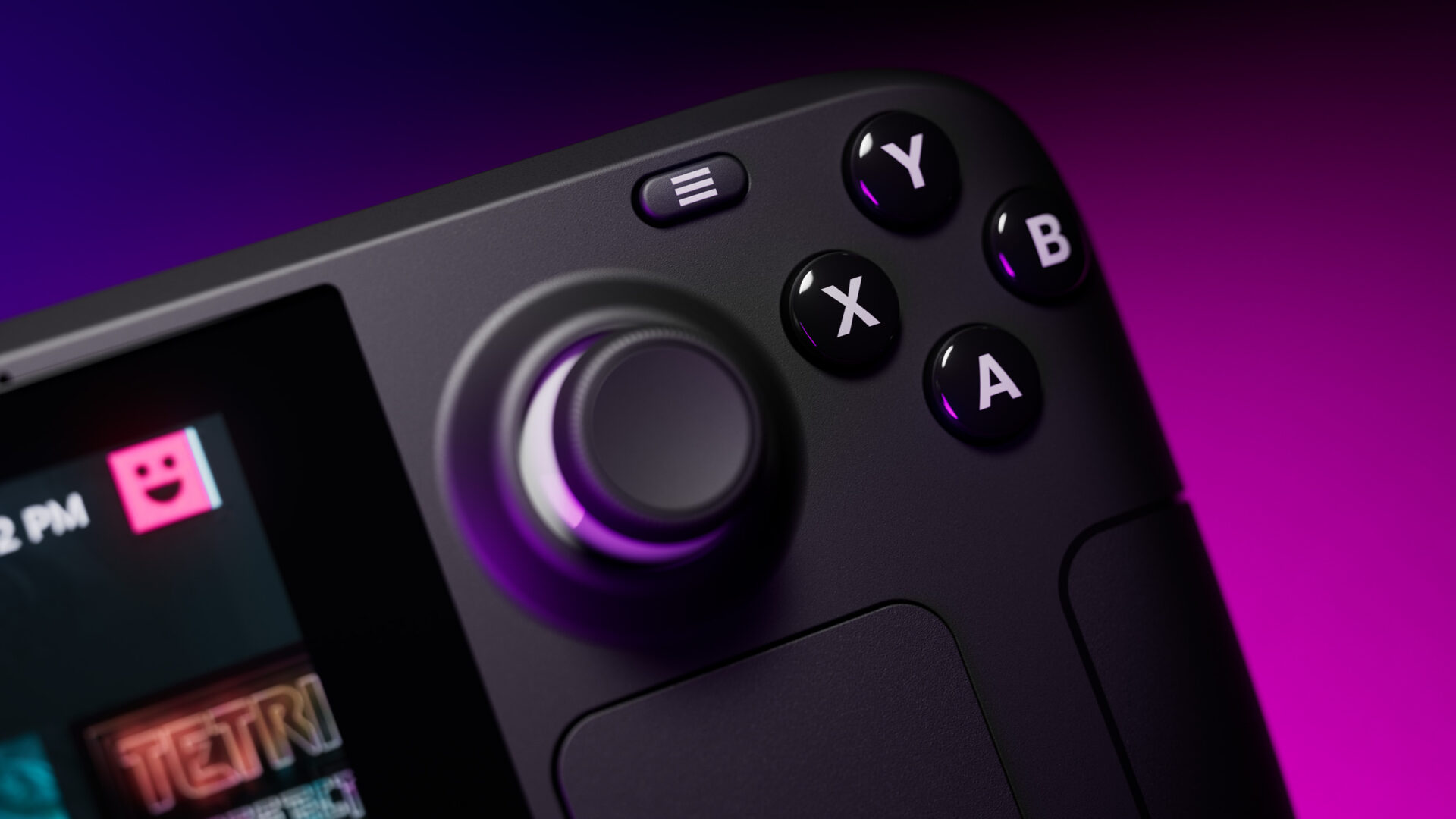
Steam Deck was a pleasant surprise for all handheld gaming fans. In addition to its real competition for the Nintendo Switch, Valve’s console is also flexible regarding operating system installation and game variety. It’s also nice to have a variety of input methods: touch pads, trackpads, on-screen keyboard, and mouse, all of which allow you to use your console to the max regardless of mode. Today we will tell you how to disable the gyro on Steam Deck, check it, and calibrate it for gaming use.
Why Is a Gyroscope Needed on a Steam Deck?
The gyroscope is designed to determine the angle of orientation of an object relative to the accepted reference system. In other words, it can detect changes in the body’s position, its tilt. It is used to stabilize cameras, navigation devices, and games.
In games, you can use it to control movement and shooting, not by pressing the keys but simply by tilting the device. In some games, this is convenient. In others, it gets in the way. Fortunately, it is easy to turn on and off, and the transition between control modes is almost instantaneous and does not require rebooting the console.
You can see a short demonstration of controls using trackpads and the gyroscope here :
How to Turn On/Off Gyroscope on Steam Deck
The gyro is on by default, and while this is acceptable in games, it can be uncomfortable when working in Steam Deck desktop mode with a mouse. Let’s look at two ways to turn off the gyro on Steam Deck:
- In the game, click the “Steam” button. To the right of the settings is a section called “Controller Settings Overlay”. Look for “Gyro Behaviour“. Click on it and select “None” from the drop-down list;
- Go to the game’s home page for the “Controller” section. Next, find the gyro item and turn it off. The second method does not always work – especially with titles that have native support for the gyroscope.
Turning on the gyro does not require special settings – follow the algorithm above and set the values to their original values.
Calibrating
Calibrating the gyroscope is important because it directly affects its operation and uses in games. The calibration procedure is simple:
- Click the “Steam” button and go to “Controller Settings Overlay”
- Locate the “Calibration and Advanced Settings” item;
- Place the console on a flat, non-moving surface;
- Follow the instructions on the screen, aligning the three dots in the center.
- Users need to calibrate themselves for each console profile and even use shared access. The settings are individual for each profile.
If the Gyroscope Does Not Work
If the Steam Deck gyro does not work, you should:
- Once again, make sure it’s enabled, and the game supports its use;
- Go to the settings and increase the sensitivity;
- See the solution on Reddit – the gyro should be selected as the joystick.
- In other cases, it is worth considering a physical failure of the component. With Google, you can find instructions on repairing trackpads and other console nodes independently, but we recommend contacting support services and demanding a replacement device.
Useful Video
In this article, we have disassembled how to enable and disable gyro control on Steam Deck, what games it supports, and what to do in case of gyro malfunction. We recommend trying different combinations of controls to find the perfect one. And if you still have questions about using Steam Deck, you can read a short guide or the official FAQ.
What games support the gyroscope ?
Not all games initially support gyro control. But that doesn’t mean you can’t use it – there are plenty of video tutorials on YouTube on how to enable it in unsupported titles. But don’t forget to check and set up your gyro on Steam Deck.
Important: Of course, in games without the original support for the gyroscope, errors, and incorrect operation are possible.
Steam and Reddit have repeatedly raised the topic of titles that natively support the gyroscope. We will not list them all, but among them are such well-known products as:
- Days Gone;
- CS:GO;
- Portal;
- Half-Life 2;
- Death Stranding;
- Heavy Rain.
Some games support the function partially: for example, only as a pointer in Super Mario Galaxy. So try it, and only this way you can understand what suits you best: fortunately, Valve added the possibility of combined input, which allows you to find the best option for everyone.