
 Egor
Egor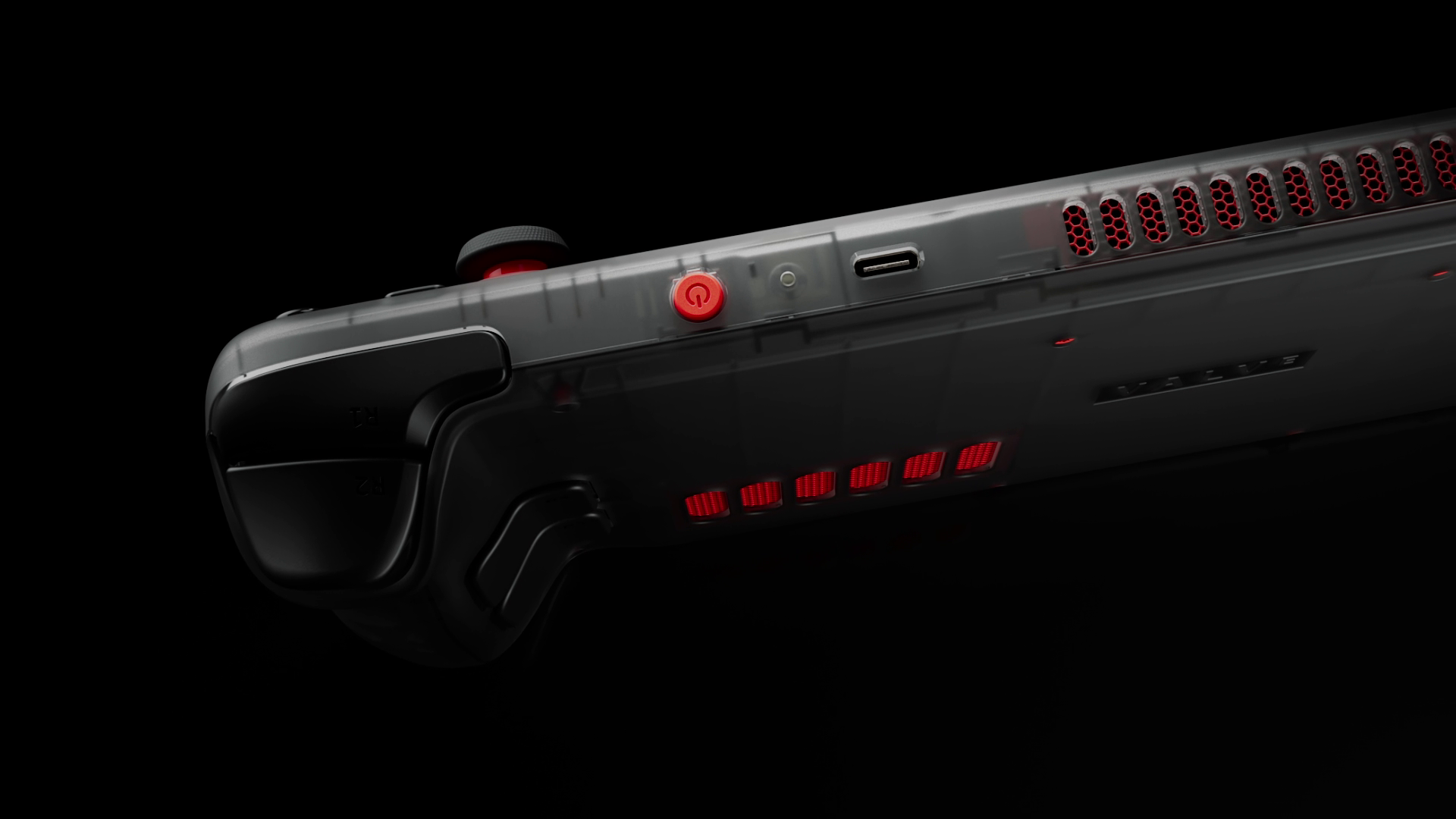
Steam Deck allows users to plunge into handheld gameplay, as was previously the case with the PSP. But Valve’s console has gone further: both in terms of performance – you can play desktop games, and in terms of functionality – users can turn the console into a PC by installing another OS and perform most of the actions available on computers. But bugs and crashes are inherent in any platform, especially flexible ones. So today, let’s look at how to restart Steam Deck – it’s the most popular way to eliminate any bugs that work.
When Can Restarting Steam Deck Help?
This is usually the first thing the experts advise, and they’re right: restarting helps eliminate:
- System slowdown;
- Optimize the operation of programs;
- Complete the installation and configuration of applications;
- Avoid overheating;
- Fix Internet connection problems.
Why does it work? The answer is here, but in brief, it allows you to clear your device’s RAM, reset and reconnect connections, and fix compatibility errors. This is all relevant for both PC and Steam Deck. By the way, you can also use Discord on the console to communicate with friends.
How to Restart Steam Deck
Not all errors can be fixed simply by restarting – some may require a factory reset. We have already told you more about the types of resetting and the algorithm of actions, but now we will tell you more about the ways of restarting.
Software restart : the easy way
There are two ways to do it.
The first is to go to “Software Updates” (or through the Steam menu) and then find the item “Shutdown” and, in it, “Restart”.
The second option is faster – hold the power button until the menu pops up. Then, select the third option from the top, “Reboot”.
We suggest using these options unless you are in dire need of a hard reset. Get answers to popular Valve console questions here and here.
Hardware restart using Force
There are two ways to force a restart of Steam Deck:
Start with the usual one: Hold down the power button for 3 seconds. A pop-up menu will appear, and then the console will shut down;
The second option is relevant for serious errors at the OS level. Also, press the power button, but hold it for at least 10 seconds.
Important: Make sure the power button is pressed down. Often it may stick or malfunction – the device is working, but pressing the button is not readable. The solution – replace the button yourself according to the guide on Reddit or contact a service center.
If Steam Deck does not want to turn on after the hardware shutdown, you should check the charger and put the console on charge again. Next, check the screen’s integrity – if everything is fine, we recommend reading the article on what to do if Steam Deck is not turned on.
Video Instructions
The article looked at different ways of rebooting: hardware and software and their differences. It also described what to do if Steam Deck fails to turn on and how to fix it yourself. Restarting usually allows for fixing connection faults and speeds up the system. We advise you to update Steam OS regularly and restart the console after installation – this will help clear RAM and speed up applications.
The Main Faults of the Valve Console
Steam Deck does not give the classic death signals as on the PC. But any extraneous sounds, regardless of hardware nature or system beeps that were not there before, should alert you.
Now let’s look at the main errors in the operation of the console, which can be corrected by restarting:
- The console hangs: in the game, at startup, on the logo;
- Installed system update (we recommend following and installing the updates in time). A long restart of Steam Deck, in this case, is normal;
- The console begins to work slowly, froze, or warmed up.
However, restarting will always be useful – even after replacing the SSD drive, you need to restart the device correctly. The next step is usually a recovery or reinstallation of the system – more details can be found in the thematic article.
If the error is caused by a serious malfunction of the operating system or hardware failures, restarting will not help! If the warranty is active, contact support and try to replace the console with a new one. Of course, you do not need to open its case yourself to do this.
Many electronic devices now have very small parts and boards, making it difficult to repair them. But Steam Deck’s console has pretty good repairability, and with proper diligence and tools, a lot can be fixed by yourself.
Before repairing and reinstalling the system, we recommend reading the article on transferring the data from the console to your PC.