

 Saburo
Forget tiny speakers and compressed audio. Your Steam Deck can deliver studio-grade sound with the right tweaks. I’ll show you how to bypass the built-in audio limitations, unlock true 24-bit/192kHz output, and finally hear every footstep, bullet ricochet, and ambient whisper in your games.
Step 1: Stop Using the Built-In Speakers
Valve didn’t design the Steam Deck for audiophiles. Its onboard DAC maxes out at 16-bit/48kHz; barely better than a Bluetooth speaker. The fix? Plug in a USB-C DAC. Not all DACs work, some get power-hungry and crash the Deck. Stick to these battle-tested models:
- AudioQuest DragonFly Cobalt (24/192 support, no drivers needed)
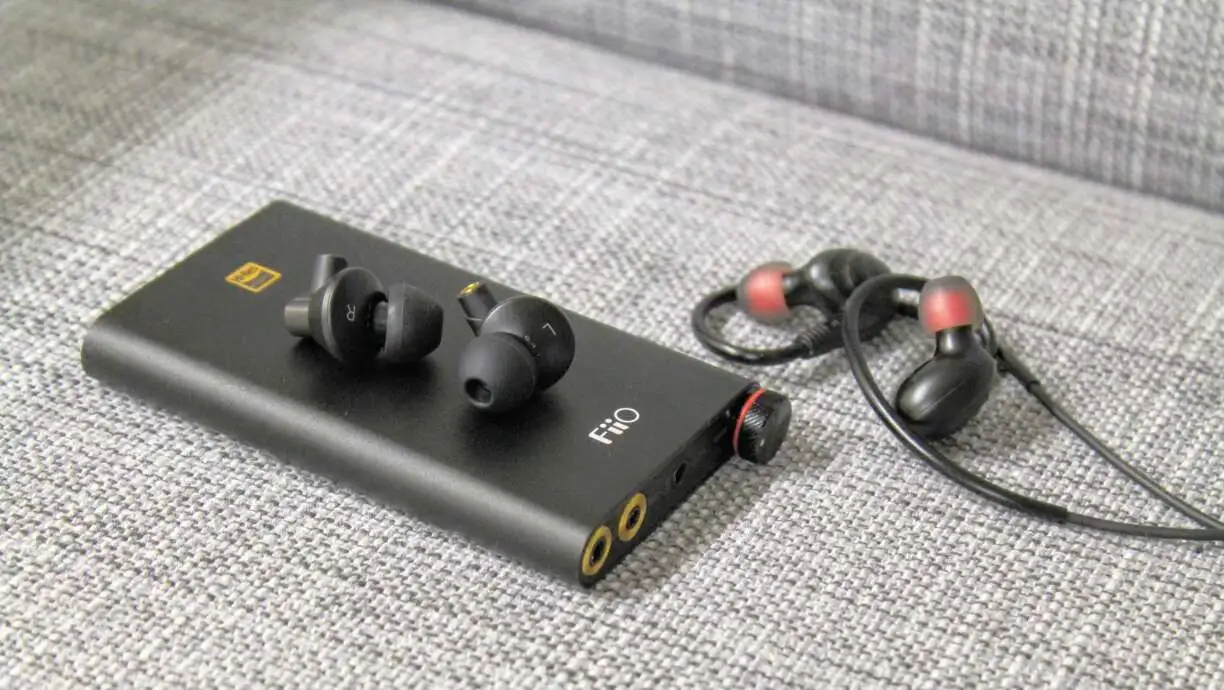
- Fiio Q1 Mark II (amp + DAC combo for headphones)
- Cambridge Audio DacMagic 100 (balanced output for studio monitors)
Connect via USB-C to S/PDIF or USB-C to coaxial. Avoid USB-C to USB-C, most DACs crap out on that interface.
Step 2: Force 24-Bit Audio in SteamOS
By default, SteamOS runs audio at 16-bit to save battery. But if you’re plugged in, you want this:
- Open Terminal
- Type
sudo nano /etc/pulse/daemon.conf - Find the line
default-sample-format - Change it to
default-sample-format = s24le - Save (
Ctrl+O) and reboot
Now your DAC will push true 24-bit audio. You’ll notice it in games like Dead Space or Resident Evil 4: distant sounds become spatially precise.
Step 3: Game-Specific Audio Settings
Most games default to stereo downmix on the Deck. Don’t settle:
- Half-Life: Alyx: In settings, set Output to
24-bit 5.1 Surround - Cyberpunk 2077: Enable HRTF in Audio Settings for 3D positional audio
- Red Dead Redemption 2: Set Speaker Configuration to
5.1even with stereo headphones
Why? The Deck’s audio engine does a better job upmixing than most games’ internal audio engines.
Step 4: Battery vs. Performance
High-fidelity audio drains the battery faster. When you’re docked, disable Power Saving:
- Settings > Power > Advanced Settings
- Uncheck
Enable Power Saving
It keeps the CPU at full clock speed, avoiding audio stuttering during intense scenes in games like Elden Ring.
Final Verdict: Don’t Settle for Mediocre Audio
The Steam Deck isn’t just a portable console: it’s a pocket studio when configured right. A $50 DAC and two config changes turn it into a serious audio rig. If you play horror, stealth, or simulation games, this setup gives you a real edge.
FAQ
Will any USB-C DAC work with Steam Deck?
No. Many DACs require more power than the Deck can supply over USB-C. Stick to the models listed above.
Can I use Bluetooth headphones for high-fidelity audio?
Absolutely not. Bluetooth compresses audio to SBC or AAC at best. For 24-bit, you need a wired connection via DAC.
Do I need to change audio settings for every game?
Only for games that default to stereo. Most modern titles will auto-detect your DAC’s capabilities.
Is there a performance hit using external DACs?
None. The Deck offloads audio processing to the DAC chip itself: your CPU stays free for gaming.