

 Saburo
I’ve reinstalled SteamOS more times than I’d like to admit, and every single time, EmuDeck is one of the first things I set up again. It turns “download twelve emulators, configure each one by hand, fight with BIOS files” into a single guided wizard. Here’s exactly how I do it, step by step.
What EmuDeck actually does
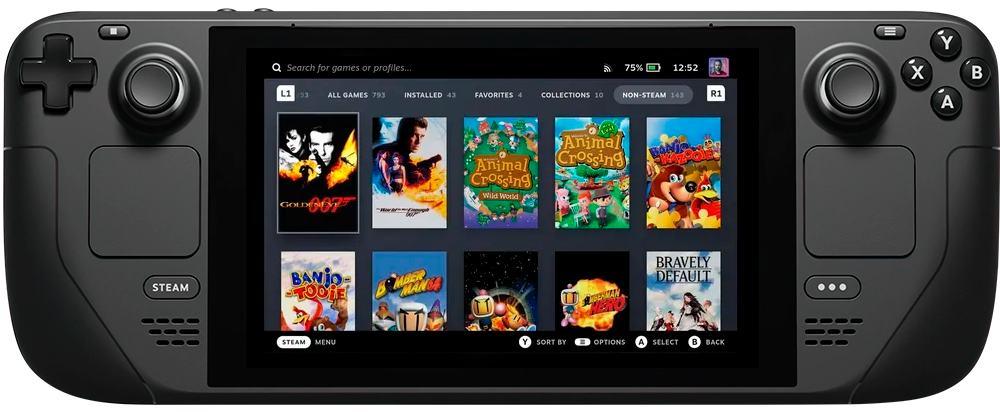
EmuDeck installs and pre-configures a stack of emulators (RetroArch cores, Dolphin, PCSX2, and more depending on what you pick), sets up a clean folder structure on your internal drive or SD card, and wires everything into a front end so you get a proper console-style menu instead of a folder full of executables. It doesn’t provide any games or BIOS files. You still need to dump your own from hardware you own, or grab legally distributed homebrew and open-source titles if you don’t want to bother with legacy consoles at all.
Step 1: Switch to Desktop Mode
Hold the power button and pick “Switch to Desktop.” EmuDeck installs through a desktop browser and installer, not through Game Mode.
Step 2: Download the installer
Open the browser, go to the official EmuDeck site, and grab the Linux/SteamOS build. Save it somewhere you’ll remember, like the Downloads folder, then make it executable and run it from the file manager or a terminal.
Step 3: Pick your install drive
The wizard asks where to put your ROMs and emulator files. If you’re on the 256GB or 512GB model and plan on hoarding retro libraries, point it at a decent microSD card instead of your internal storage. I learned this the hard way after my internal drive filled up mid-download.
Step 4: Let it install the emulator stack
EmuDeck downloads and configures RetroArch with its cores, plus standalone emulators for systems that need them (Dolphin for GameCube/Wii, PCSX2 for PS2, and so on). This step takes a while depending on your connection, so go make coffee.
Step 5: Set up your BIOS files
Some systems (PS1, PS2, Saturn) need BIOS files to run at all. EmuDeck’s tool checks which ones you’re missing and where to drop them once you’ve dumped them yourself. Skip this step for systems that don’t need a BIOS, like SNES or Genesis.
Step 6: Load ROMs and launch from Game Mode
Drop your dumped ROMs into the folder structure EmuDeck created, run the EmuDeck Sync tool so everything shows up as proper Steam entries with artwork, then switch back to Game Mode. Your retro library now sits right next to your Steam games with full controller support out of the box.
About Switch emulation: don’t expect a clean answer here
If you’re hoping EmuDeck gets you playing Switch games in five minutes, temper that. Yuzu, the emulator that used to make this easy, shut down in March 2024 after settling a lawsuit with Nintendo for $2.4 million. Ryujinx followed a few months later after Nintendo contacted its lead developer directly. EmuDeck can’t install either one fresh anymore, and while both still get mentioned in emulator lists for people who kept old builds, that’s not a starting point I’d recommend to anyone reading this in 2026. There are experimental successors floating around, but they’re unstable and sit in the same legal crosshairs. My honest take: emulate the consoles whose games you actually own on the systems that are stable and well-supported (basically everything up through the PS2/GameCube era), and leave Switch emulation alone until the legal dust settles, if it ever does.
One more thing before you dive in
A full retro library eats storage fast, so check how much headroom you actually have before going wild with downloads (our battery life settings guide also covers a few tweaks worth applying once you’re spending more hours in emulated games). And if you’re the type who also likes tinkering with mods on your native Steam library, our guide to installing game mods on Steam Deck pairs nicely with an EmuDeck setup, since you’ll already be comfortable poking around in Desktop Mode by then.
Run through these six steps, dump your own BIOS and ROMs from hardware you own, and you’ll have a working retro setup in under an hour. Skip the Switch rabbit hole for now and your Deck will run everything else buttery smooth.