
 Egor
Egor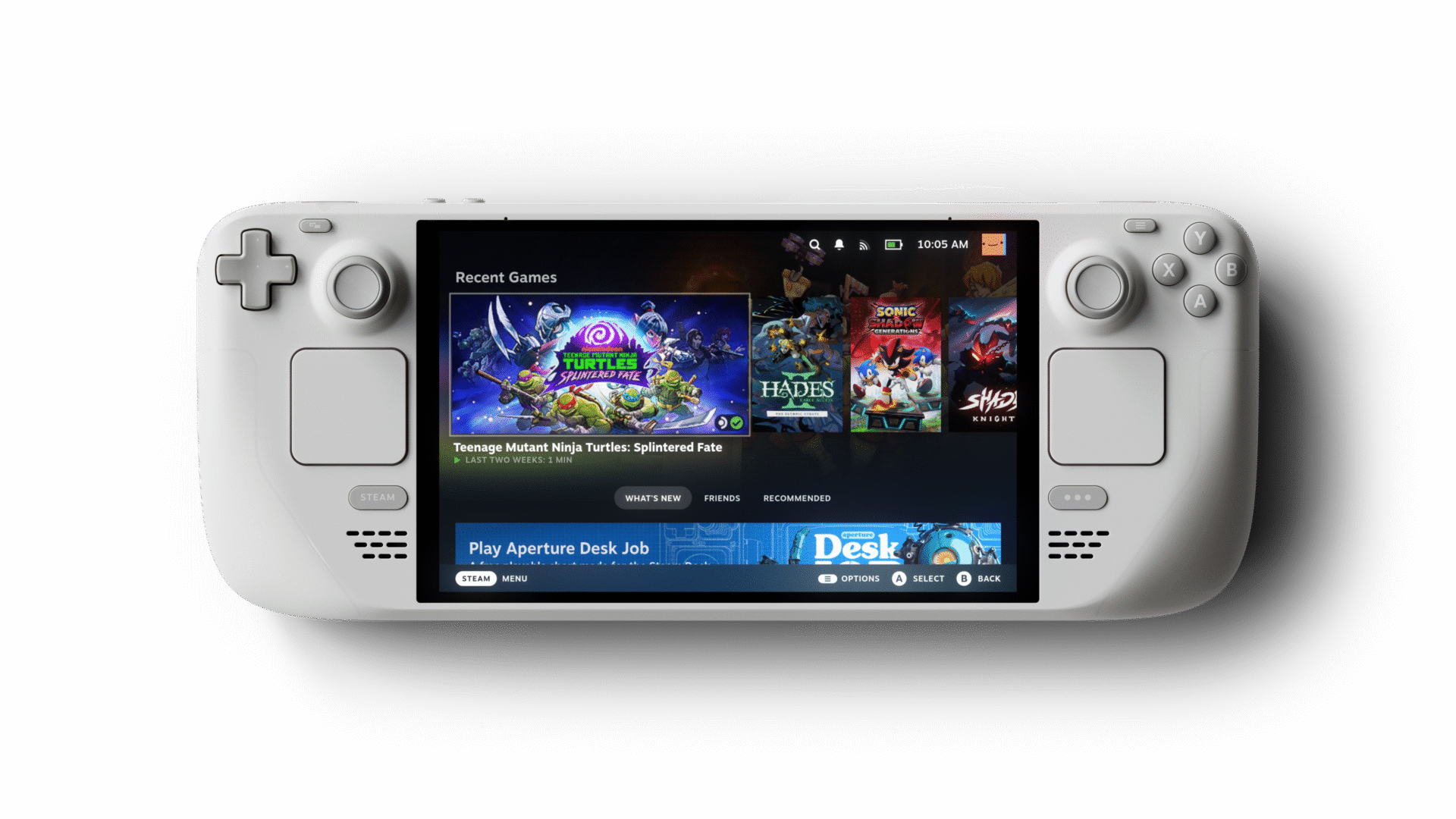
One of the main advantages of the Valve console is the good combination of portability and power. You don’t need extra power to use it to the maximum – the battery is fully capable. But not always. The console is used for gaming, and Valve engineers have developed a special desktop mode for these cases, resembling a PC’s desktop. Today we will tell you what to do if the Desktop Mode on Steam Deck doesn’t work, lags, or is not displayed correctly.
Purpose of Desktop Mode
In this mode, you can use the console as if it were a laptop and even install Discord. You can also use other operating systems besides pre-installed SteamOS, such as Windows or Linux. Learn more about Steam Deck features from the official FAQ.
Remind that we have a detailed standalone article dedicated to the Desktop Mode features of Steam Deck.
Troubleshooting
This guide analyzes popular problems when turning on the desktop mode.
Desktop Mode Black Screen
If you see a black screen when you switch to Steam Deck desktop mode, or if the console regularly hangs (the keyboard disappears, the mouse works, trackpads), try rebooting the console and switching between modes a few times.
Then you should do two simple actions and eliminate the errors, which can be stopped on your own:
Download a system update. Outdated software can cause failures, so click on Steam and go to the “Settings” section. Then look for the “System” tab and the “Check for updates” option. After updating, restart your console;
If Desktop Mode on Steam Deck hangs and you can’t do anything – no reaction to button presses and cursor movements, you need to do a forced reboot. We’ve already discussed rebooting in more detail in the feature article, but in this case, you need to hold down the power button for over 10 seconds. This will eliminate errors at the OS level and usually allows you to speed up the system and fix connectivity issues and other minor bugs.
Make sure the problem is not a physical malfunction of the buttons, touchpad, and trackpad.
Non-Steam Games
We have already told you how to install third-party games and mods on your console. One of the causes of errors with Steam desktop mode can be third-party applications that block the normal operation of the OS. So, first, disable these programs – you don’t have to uninstall them. Then, complete the process to check the assumption.
Use the “Kill Signal” command. On Unix-like systems, signals provide process communication, and the “kill” command stops the interrupt, and the system cannot ignore this message. We don’t recommend doing this unnecessarily, but it usually allows you to stop processes blocking the normal operation of the OS. Algorithm:
Go to System Monitor;
Look for the Steam client or any other application that you think might be the source of the error;
Right-click and find the “Send Signal” option, then “Kill”.
We recommend restarting the console and checking if PC mode works on Steam Deck.
Factory Reset
Let’s move on to drastic measures – resetting the system to factory settings. This should be done if the above methods did not help and to problems like “keyboard does not work” added a black screen and hangs on the Steam logo on restart.
Before resetting, we suggest you review the thematic guide from Valve and our article on transferring data from your device to your PC. Contact the service center and do not be afraid – the situation when the trackpad does not work in desktop mode and you can not control the cursor, is not uncommon, even on Reddit. Request repair or device replacement. Get official help on Steam Deck here.
Bad Internet Connection in Desktop Mode
The console supports Wi-Fi 2.4/5GHz. Therefore, owners recommend a simple router channel change to restore normal speeds and even fix slow system performance:
Change the router channel in the web browser and save;
Under “Wireless Network Settings” on the set-top box, go to “Channel” and change the frequency value. Save the changes;
Restart the devices, and check for an Internet connection.
Important: If you do not select the automatic setting item, the frequencies must match on the router and console. You will also need to change the preferred Wi-Fi channel on other devices.
Useful Video
In this article, we considered various causes and provided an algorithm of action if the Steam Deck desktop mode does not work or if a bug makes further use impossible. In most cases, you can fix the problem yourself: the only difference is that this may require a trivial restart, downloading a firmware update, or a complete reinstallation of the system. Do not forget that you are entitled to service, but it is better to fix simple problems yourself, such as an unstable Internet connection.