

 Saburo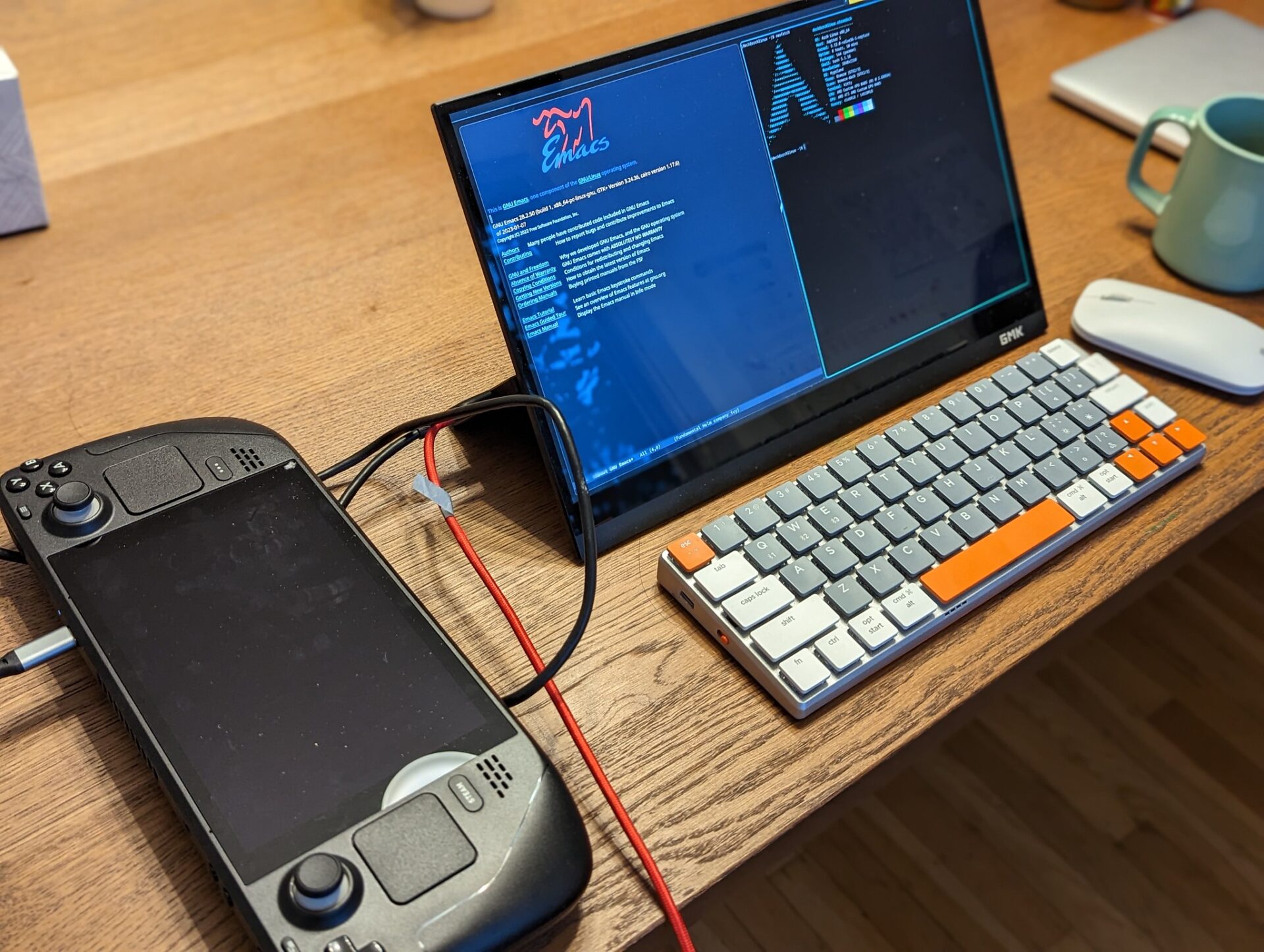
One cable. That’s the whole pitch. You plug a USB-C into your Steam Deck, the other end into a portable monitor, and you go from a 7-inch handheld to a 15-inch gaming panel in about five seconds. No dock, no power brick, no tangle of cables running across a hotel desk. I’ve been doing this on trips for a while now, and honestly it’s one of the best upgrades you can make to your Steam Deck setup — if you pick the right screen.
What Specs Actually Matter for Steam Deck
Not every portable monitor works cleanly with the Steam Deck. Here’s what to check before you spend a cent.
DisplayPort Alt Mode — non-negotiable
Steam Deck docking stations usually handle video output for you, but with a bare USB-C cable you’re relying entirely on the port’s native capability. The Steam Deck’s USB-C port supports DisplayPort 1.4 Alt Mode, which can push up to 1440p@120Hz to an external display. If your monitor only accepts USB-C for power (charging-only cable or power-delivery-only port), video won’t work. Look for “DP Alt Mode” or “USB-C video input” in the specs — not just “USB-C.”
Pass-through charging at 45W or more
The Steam Deck’s maximum USB-C charging rate is 45W. Any portable monitor that offers USB-C Power Delivery at or above 45W can charge the Deck while gaming — through the same cable that carries the video signal. Below 45W, you’ll game on battery and slowly drain. Below 30W, you’ll drain faster than you top up during demanding games. Check the PD wattage, not just whether PD exists.
Refresh rate
The Steam Deck’s internal display runs up to 60Hz (LCD) or 90Hz (OLED model). For an external monitor, 60Hz is the floor — it works, but 120Hz or 144Hz costs very little extra these days on portable screens and makes a noticeable difference in fast games. I’d skip anything under 120Hz in 2026 unless you’re on a very tight budget.
Aspect ratio: the 16:10 question
The Steam Deck’s native screen resolution is 1280×800, which is a 16:10 aspect ratio. Most portable monitors are 16:9 (1080p, 1440p). That mismatch means black bars at the top and bottom when the Deck outputs its native resolution — annoying, but not a dealbreaker. You can force a 16:9 output resolution in SteamOS (1280×720 or 1920×1080) and the bars disappear. If you game in a lot of older titles that struggle to scale, a 16:10 panel is a nicer match, but they’re harder to find in the portable category.
Weight and portability
Portable monitors under 3 lbs (around 1.4 kg) and 15–16 inches fit in most standard laptop bags alongside the Steam Deck and a charger. Go bigger and you’re lugging a panel. Go smaller than 13 inches and the whole point of upgrading from the Deck’s screen gets fuzzy.
One thing people forget: the cable
Monitors that require a separate HDMI power brick are not truly portable — check that the monitor can run off the Steam Deck’s own USB-C output or a power bank. Also: test the USB-C cable that came with your Deck first. It supports video. A lot of people buy a separate cable thinking theirs won’t work — it will.
Portable Monitor Comparison Table
| Monitor | Size | Resolution | Refresh Rate | USB-C PD | Weight | Price Tier |
|---|---|---|---|---|---|---|
| Arzopa Z1FC | 16.1″ | 1920×1080 (IPS) | 144Hz | ≥45W | 780g | Budget (~$130) |
| INNOCN 15A1F | 15.6″ | 1920×1080 (OLED) | 60Hz | Yes | ~860g | Mid (~$250) |
| ASUS ZenScreen MB16AHG | 15.6″ | 1920×1080 (IPS) | 144Hz + FreeSync | ≥45W | ~900g | Mid-High (~$250) |
| INNOCN 13A1F | 13.3″ | 1920×1080 (OLED) | 60Hz | Yes | ~500g | Mid (~$200) |
| Arzopa Z3FC | 16.1″ | 2560×1600 (IPS) | 180Hz + FreeSync | ≥45W | ~900g | High (~$200) |
My picks, broken down
Arzopa Z1FC — this is the one I recommend to anyone who asks me. It has a 16.1-inch 1920×1080 IPS screen, 144Hz refresh rate, and a 780g body with two USB-C ports and mini HDMI. At around $130, nothing at that price comes close for gaming on the Steam Deck. The 144Hz over USB-C single-cable setup just works, and FreeSync keeps screen tearing out of the picture.
INNOCN 15A1F — if you own the LCD Steam Deck and want to understand what OLED looks like without buying a new Deck, this is your answer. True blacks, 100% DCI-P3, factory calibrated. The 60Hz cap is the compromise, and it’s one I personally struggle to accept during fast action games. Great for RPGs, visual novels, anything where image quality trumps frame rate.
ASUS ZenScreen MB16AHG — the safe, premium choice. ASUS backs it with a 3-year warranty, which matters when you’re throwing hardware into a bag every week. 144Hz, FreeSync, a proper tilt-adjustable kickstand that doesn’t wobble. You’re paying for reliability and build quality, not raw specs.
INNOCN 13A1F — the compact OLED option for people who travel light. At 13.3 inches it’s not a huge jump from the Deck’s 7-inch screen in terms of area, but OLED contrast transforms the image regardless. Good pick if bag space is genuinely limited.
Arzopa Z3FC — the spec monster of the group. 2560×1600 at 180Hz sounds absurd for a portable, and honestly the Steam Deck won’t hit 180fps in most games. But 1440p output at 60fps looks noticeably sharper than 1080p, and future-proofing costs nothing when the price is reasonable. Worth it if you also use the monitor with a laptop or desktop.
Dock or No Dock?
I already covered Steam Deck docking stations in a separate guide, so I’ll keep this short: a dock makes sense when you want a permanent desk setup — multiple USB ports, ethernet, maybe a second monitor. A portable monitor with DP Alt Mode is for mobility. Hotel room, friend’s place, a plane tray table (respect to anyone who’s tried this). The whole point is that the monitor acts as its own hub. Some portable screens even have a built-in USB-C hub that replaces the dock entirely for light use. If your use case is “couch” or “desk at home,” get a dock. If your use case is “everywhere else,” a portable monitor and one cable is cleaner.
FAQ
Do I need a dock to use a portable monitor with the Steam Deck?
No. As long as the monitor supports DisplayPort Alt Mode over USB-C, you can connect it directly with a single USB-C cable. No dock needed. The cable that ships with the Steam Deck supports video output — try it first before buying anything extra.
Will a 16:9 monitor show black bars with the Steam Deck?
Yes, if the Deck outputs its native 1280×800 (16:10) resolution. You can eliminate the bars by setting the output resolution to a 16:9 option (like 1280×720 or 1920×1080) in SteamOS display settings. Most games scale fine to 1080p.
What’s the minimum USB-C PD wattage I need to charge while gaming?
The Steam Deck charges at up to 45W via USB-C. For stable, positive charging during demanding games, you want a monitor that delivers at least 45W PD back to the Deck. Lower wattage monitors will still work but the battery will slowly drain during heavy sessions.
The Right Pick Is Simpler Than It Looks
For most Steam Deck owners, the Arzopa Z1FC hits the sweet spot: 144Hz, under $140, single-cable USB-C, light enough to fit in any bag. Go INNOCN if OLED visuals matter more to you than high refresh rates. Go ASUS ZenScreen if you want a warranty and build quality that survives daily travel abuse. Whatever you pick, start by testing the USB-C cable that came in the Steam Deck box — it handles video and power delivery out of the box, and that single cable might be all you need to get started tonight.