

 Saburo
Summary
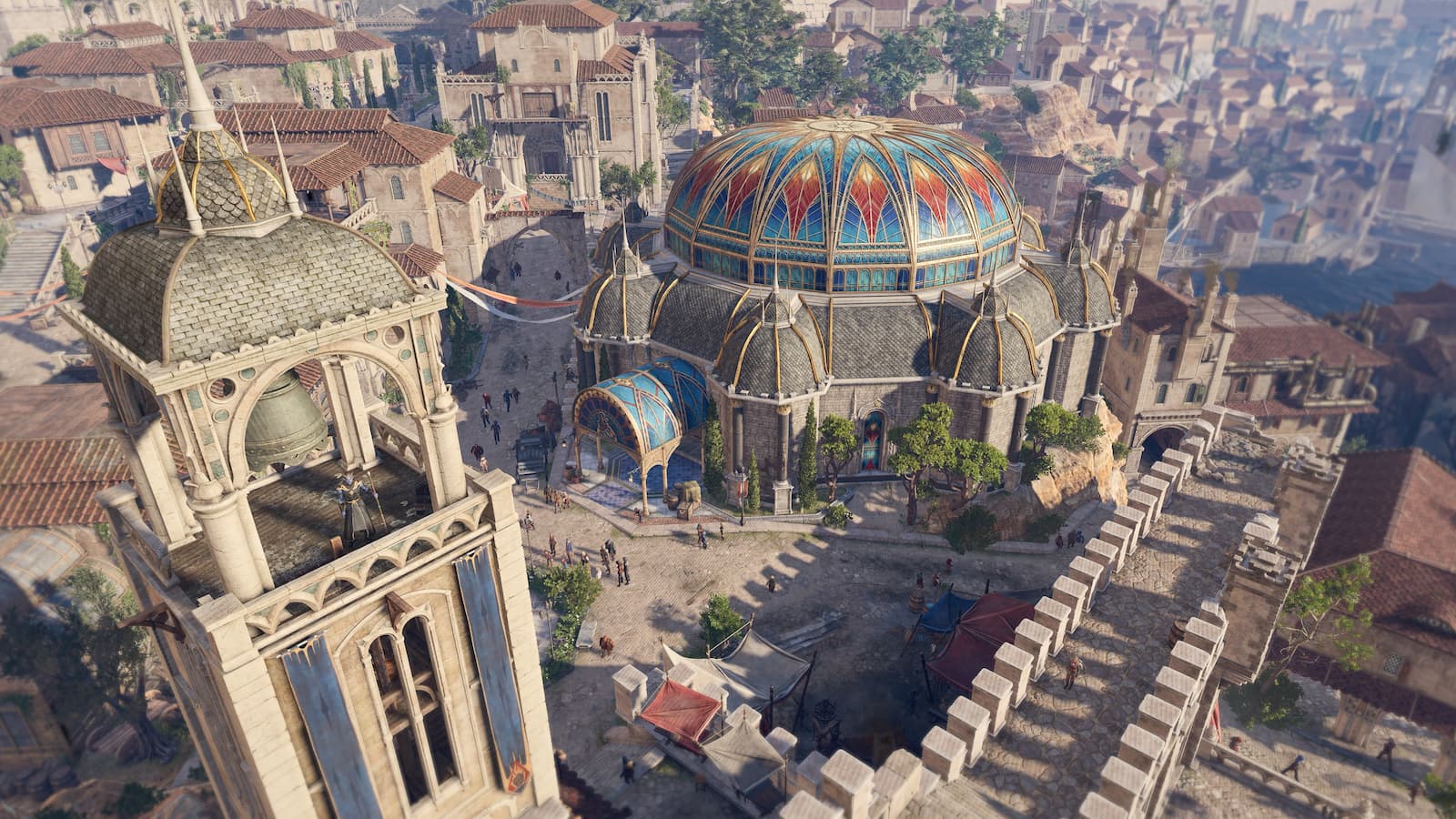
Baldur’s Gate 3 runs great on Steam Deck almost everywhere, except the Act 3 city, where crowd density and NPC scripting drag the frame rate down hard. The fix isn’t a single magic toggle: it’s dropping shadow and crowd-heavy settings, capping FPS with a matching TDP limit, and leaning on FSR to keep resolution honest. Here’s the exact preset I run once I hit the Lower City gates.
Why Act 3 Hits So Much Harder
Acts 1 and 2 are forgiving. Open fields, forests, the occasional camp fight, nothing that stresses the Deck’s APU past a comfortable 40+ FPS on a mid-range preset. Then you cross into Baldur’s Gate proper and the engine has to track dozens of NPCs at once, each running their own AI routines, schedules, and combat logic, on top of shadow-casting geometry stacked three stories high.
This is a CPU-bound problem more than a GPU one, which is exactly why lowering resolution alone barely helps. You need settings that cut how much the CPU has to simulate and how much the GPU has to shade, not just how many pixels it draws.
The Graphics Preset That Actually Holds Up
Skip the built-in “Steam Deck” preset. It’s a decent starting point in Act 1, but it doesn’t dig deep enough for the city. Go into Options > Graphics and set these manually:
- Preset: Medium as a base, then override individual settings below
- Shadow Quality: Low (this alone is the single biggest FPS gain in the Lower City)
- Crowd Density: Low or Medium, never High in populated districts
- View Distance: Medium
- Ambient Occlusion: Off
- Motion Blur: Off (does nothing for performance, but it hides how choppy things feel)
Leave texture quality on High. Steam Deck’s 16GB of shared RAM handles BG3’s textures fine, and dropping them buys almost nothing while making the game look noticeably worse.
FSR and Resolution: Set It, Don’t Chase It
Turn on AMD FSR 2 and set the scaling mode to Balanced. Quality mode looks a hair sharper but won’t buy you the headroom you need once you’re surrounded by fifty NPCs in the market square. Balanced gives a real, consistent frame rate cushion without the smeary look you get from Performance mode on a 7-inch screen.
Pair FSR with a locked internal render target rather than letting the game’s dynamic resolution scaler fight the engine for control. In my experience, dynamic scaling on top of FSR causes visible resolution flicker in crowded scenes, worse than just accepting a lower fixed target.
TDP and FPS Cap: The Pairing People Skip
Open the Steam Deck quick access menu and set an FPS cap of 40, then match it with a TDP limit around 9-10W. This is the combination that keeps Act 3 stable instead of oscillating between 45 and 25 FPS depending on how many townsfolk are on screen. A hard cap forces the game to hold a target instead of chasing an unreachable ceiling and burning battery for nothing.
If you’re plugged into a dock or don’t care about battery life, bumping TDP to 12-13W with the same 40 FPS cap gives you more consistent 1:1 frame pacing, which matters more than raw FPS for a game this dialogue-heavy. If you’re chasing longer sessions off the charger, the same TDP logic is behind most of the tips in our guide to extending Steam Deck battery life while gaming.
Turn Off What You Don’t Need
A few settings buried outside the main Graphics tab matter more than they should:
- Disable Depth of Field in cutscenes and dialogue (Options > Gameplay), it costs frames during the exact moments you want smoothness most
- Turn off Vsync if you’ve already capped FPS through Steam, running both fights each other and adds input latency
- Lower Fog of War detail if it’s exposed in your game version, it’s a small saving but stacks with everything else
What This Actually Gets You
With this setup I hold a steady 40 FPS through most of the Lower City and only see drops into the mid-30s during the busiest festival crowds or big set-piece fights. That’s a night-and-day difference from the stuttery mid-20s you get running the default Steam Deck preset into the same areas. It’s not a magic fix, Act 3 is genuinely the heaviest content in the game on any hardware, but it’s the difference between playable and frustrating on the Deck specifically.
Community benchmarking on ProtonDB backs this up: BG3 is rated Platinum for Proton compatibility, and most of the reported friction in user reports traces back to exactly these Act 3 crowd scenes rather than any Linux-specific issue. If you want to dig deeper into how Larian’s engine handles crowd AI under the hood, GamingOnLinux has covered the patches that touched Deck performance over the game’s post-launch updates.
FAQ
Does lowering resolution help more than these settings?
Not much on its own. Act 3 slowdown is mostly CPU-bound from NPC simulation, so shadow quality and crowd density matter more than raw pixel count.
Should I use FSR Performance mode instead of Balanced?
Only if you’re still dropping below 30 FPS after applying every setting above. Performance mode trades visible sharpness for frame rate, and on the Deck’s small screen that trade is more noticeable than the FPS gain is worth in most cases.
Will these settings hurt my experience in Acts 1 and 2?
No, if anything they’ll push your frame rate even higher there since those acts are lighter to begin with. There’s no need to swap presets between acts.
Does turning off Ambient Occlusion make the game look bad?
It’s one of the least noticeable settings to disable during actual gameplay. You’ll mostly miss it in screenshots, not in play.
What about other heavy RPGs, is this approach specific to BG3?
The shadow/crowd-first priority applies broadly. We used the same logic in our Elden Ring performance settings guide, and it holds for most CPU-bound open-world or crowd-heavy titles on Deck.
Bottom Line
You don’t fix Act 3 performance with one setting, you fix it by cutting CPU load first (shadows, crowd density) and letting FSR Balanced plus a locked 40 FPS cap handle the rest. Run this preset before you walk through the Lower City gates rather than fighting the default preset mid-quest, and Baldur’s Gate 3 stays genuinely playable on Steam Deck all the way through the ending.