

 Saburo

In short:
- The Steam Deck’s default TDP slider caps total power but does not control how watts are split between the CPU and GPU.
- Use the Gamescope overlay to identify whether your game is CPU-bound or GPU-bound before adjusting any settings.
- PowerTools via Decky Loader lets you change CPU governors and SMT to redirect power where it actually improves frame pacing.
The Steam Deck hands you a TDP slider and calls it a day. Most players cap their wattage, lock the GPU clock, and assume they squeezed every frame out of the hardware. They miss the actual bottleneck hiding inside the APU: how power splits between the CPU and GPU at any given second. The default allocation feeds watts to cores that do not need them while starving the component fighting for its life.
One Chip, One Budget, Two Hungry Components
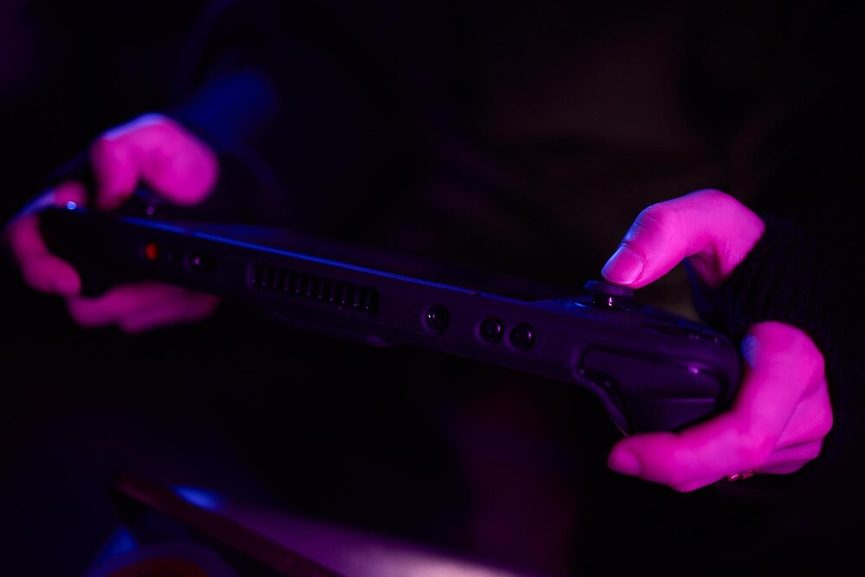
Your Steam Deck runs on a custom AMD chip (Aerith on LCD models, Sephiroth on OLED) that forces the Zen 2 CPU cores and the RDNA 2 GPU to share a single power budget and thermal envelope. Every watt routed to the processor is a watt the graphics side cannot touch. Valve’s official specifications list the LCD model with a 4-core/8-thread Zen 2 CPU paired with an 8-compute-unit RDNA 2 GPU, operating within a configurable 4 to 15W TDP.
That 15-watt ceiling is your entire playground. When you launch a visually heavy game like Cyberpunk 2077, the GPU needs almost all of it. Yet the system keeps reserving headroom for CPU spikes that never arrive. You end up with micro-stutters because the GPU hits its power limit early, drops clocks, recovers, and drops again. That jagged line on your frametime graph? That is the split failing you.
Reading the Bottleneck Before Touching Anything
You cannot fix what you refuse to measure. SteamOS uses the Gamescope compositor to render a built-in performance HUD showing FPS, frametime graphs, CPU/GPU utilization, and package power. Activate it through the quick access menu’s performance tab or by pressing the three-dot button alongside the power button.
Set the overlay to level 3 or higher. Look at two numbers while playing:
- CPU utilization percentage across all threads.
- GPU utilization percentage.
If your GPU sits at 95-100% while the CPU hovers around 40%, you are GPU-bound. Shoving more power toward the processor does absolutely nothing. If the reverse happens, which is common in simulation games or crowded open worlds like Starfield, your CPU chokes while the GPU waits idle.
Community testing shared in Reddit performance discussions confirms that the CPU stays highly energy-efficient up to about 2100 MHz, meaning you rarely need to push it hard to get enough processing power for most titles. Always check ProtonDB reports before tweaking, since community data often flags whether a specific title leans CPU-heavy or GPU-heavy on Deck hardware.
Key takeaway: Check CPU and GPU utilization with the Gamescope overlay before tweaking anything. If one component is already maxed out, redirecting power to the other will not improve frame pacing.
Shifting Watts Where They Actually Matter
The stock UI gives you a per-game TDP limit in watts capping total APU draw rather than individual components, plus a GPU clock lock. These are blunt instruments. To actually nudge the CPU/GPU balance, you need deeper controls.
This is where Decky Loader enters the picture. It acts as a homebrew plugin loader for SteamOS hosting tools like PowerTools. This plugin exposes CPU governor settings, SMT toggles, and thread controls that the stock interface hides entirely. For a GPU-bound shooter running at 40W capped TDP, switching the CPU governor to “powersave” tells the Zen 2 cores to stop boosting unnecessarily. The APU reallocates that freed thermal and electrical headroom directly to the RDNA 2 graphics units. Stutters vanish. Frametimes flatten.
For CPU-bound strategy games, you might disable SMT (simultaneous multithreading). Running four physical cores instead of eight logical threads reduces overhead and scheduling latency. Combined with forcing the CPU governor to “performance”, you guarantee the processor gets priority when the power budget tightens.
A Practical Workflow
Stop guessing. Follow this loop every time you boot a new game:
Watch out: Do not apply the same power split settings to every game. A configuration that stabilizes a GPU-bound shooter will likely cause stutters in a CPU-heavy strategy title.
- Launch the game at default settings and play for five minutes with the Gamescope overlay visible.
- Note whether the CPU or GPU hits 100% first during stutters.
- Open Quick Access, install Decky Loader if you haven’t, and launch PowerTools.
- If GPU-bound, set the CPU governor to powersave and leave TDP uncapped or slightly lowered to reduce heat.
- If CPU-bound, set the governor to performance, consider disabling SMT, and lower the GPU clock lock to save watts for the processor.
- Retest for five minutes and compare the frametime graph.
Games That Actually Care About the Split
Not every game rewards this effort. Linear indie titles or 2D platformers barely stress either side of the APU. You waste your time tuning Elden Ring’s power split when the GPU maxes out regardless of what the CPU does.
The real wins happen in demanding AAA ports and poorly optimized PC games. In God of War, dropping the CPU governor to powersave stabilized frame pacing far better than simply lowering the overall TDP. Conversely, in Civilization VI late-game turns, prioritizing CPU power delivery prevented those agonizing multi-second hangs between turns. The difference between a playable experience and a stuttering mess often lives in those few watts you redirect manually.
Our Take on Stock Settings
Valve built an incredible piece of hardware but simplified the software to avoid scaring casual users. That simplification leaves performance on the table. Relying solely on the TDP slider treats the Aerith chip like a dumb heater rather than a dynamic system begging for manual direction. If you care about smooth frame pacing, installing PowerTools via Decky Loader should be your very first step after unboxing. The default slider is fine for battery life. It is terrible for consistency.
FAQ
Does lowering TDP automatically shift power to the GPU?
No. Lowering TDP caps the total power available to both the CPU and GPU combined. To specifically favor the GPU, you must use tools like PowerTools to change the CPU governor to powersave, reducing the CPU’s power appetite so the GPU can claim more of the remaining budget.
Is it safe to tweak CPU governors on Steam Deck?
Yes. You operate within the physical limits of the APU. Setting the CPU to performance mode just tells it to boost more aggressively within the existing thermal envelope. The hardware protection mechanisms prevent damage.
Do I need Decky Loader to change the power split?
The stock UI only offers a global TDP limit and GPU clock control. To manipulate CPU governors, SMT, or specific thread behavior, you need a third-party plugin like PowerTools running through Decky Loader.
Which games benefit most from manual power splitting?
Heavily GPU-bound AAA titles (like Cyberpunk 2077) benefit from starving the CPU to feed the GPU. CPU-bound games (like large-scale strategy titles or emulation) improve when you restrict GPU clocks and prioritize CPU power delivery.
Will changing the CPU governor drain my battery faster?
Setting the CPU governor to performance increases power draw during processing spikes. However, if it prevents prolonged stuttering that forces the GPU to work harder compensating for frame drops, the net battery impact can sometimes be negligible.