

 Saburo
In short:
- Locking the Steam Deck OLED to 40Hz with a 40 FPS cap delivers even frame pacing and lower power draw than chasing 60 FPS.
- The LCD model lacks native 40Hz support, forcing players to accept judder or fall back to a 30 FPS cap.
- AAA titles like Cyberpunk 2077 and Elden Ring run smoother at a stable 40 FPS than at fluctuating higher rates.
Stop chasing 60 FPS on games that can’t hold it. Locking your Steam Deck OLED to 40Hz with a matching 40 FPS frame limit gives you perfectly even frame pacing, lower APU power draw, and an experience far smoother than a stuttering 30 or 45 FPS cap. It is the single best performance tweak for demanding titles, yet most players never touch the refresh rate slider.
The Math Behind the 40Hz Sweet Spot
Frame pacing comes down to simple division. At 60Hz, each frame has 16.6 milliseconds to render. At 30Hz, it gets 33.3ms. The Steam Deck’s screen can go down to 40 Hz to display 40 FPS, which sits exactly at the midpoint in frame time between 30Hz and 60Hz according to ResetEra discussions. That means every frame gets exactly 25ms.
When you lock a game to 40 FPS but leave the screen at 60Hz, the display tries to fit 40 frames into 60 refresh cycles. It fails. Some frames show for one cycle, others for two, creating judder. Changing the actual panel refresh rate to 40Hz forces a 1:1 ratio. One frame per refresh cycle. No judder.
Gamescope, the micro-compositor Valve built for the Steam Deck’s gaming mode, handles this entire refresh rate and frame limiting pipeline natively. You don’t need third-party software to force it; you just need to know where to look in SteamOS.
Setting Up Your Steam Deck 40Hz 40FPS Settings
Open the Quick Access Menu (the “…” button on the right side of the device) while in a game. SteamOS includes a built-in per-game performance profile featuring TDP limits, GPU clock limits, frame limiters, and refresh rate controls directly in this menu.
Follow these steps:
- Navigate to the Performance tab (battery icon).
- Set “Refresh Rate” to 40Hz.
- Set “Framerate Limit” to 40 FPS.
- Enable “Half-Rate VSync” if available in your current SteamOS build.
Half-rate vsync tells the compositor to sync the 40 FPS output to the 40Hz panel without forcing the GPU to work overtime.
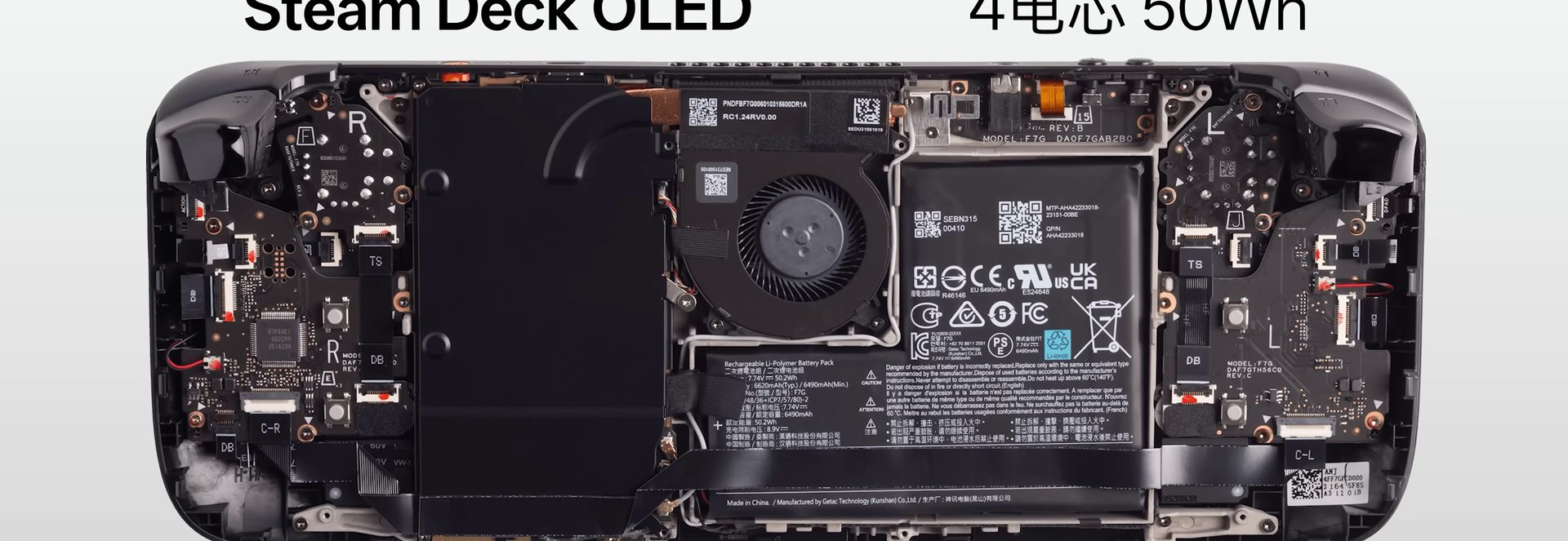
The Steam Deck uses a custom AMD APU (Van Gogh on the LCD model, Sephiroth on the OLED) with a shared TDP budget between the CPU and GPU. Lowering your frame rate target directly reduces how much power the chip pulls from the battery.
You will notice the difference immediately in heavy titles. Instead of dropping from 60 to 42 and feeling like garbage, a locked 40 FPS feels fluid because the delivery is consistent. As one player noted in a Reddit thread about 40Hz standards, running Deep Rock Galactic locked at 40fps at 40hz feels completely different from 40fps at 60hz, describing it as very smooth.
OLED vs LCD: The Hardware Reality Check
This trick belongs to the Steam Deck OLED. The original LCD Steam Deck ships with a 60Hz panel, making the native 40Hz option impossible; LCD owners are limited to capping the framerate at 40 FPS via the limiter while the screen stays at 60Hz, resulting in uneven pacing.
The Steam Deck OLED features a 90Hz display, and SteamOS lets you set an arbitrary refresh rate anywhere between 40Hz and 90Hz, with the frame limiter automatically capping itself to match that selection. You can dial in 40Hz, 45Hz, or anything in between depending on what the game demands.
If you own the LCD model, your best alternative is locking the game to 30 FPS at 60Hz (perfect 2:1 pulldown) or trying 40 FPS at 60Hz and accepting the slight judder. Some LCD users install community tools to mitigate this. Decky Loader, a plugin system for SteamOS gaming mode, adds utilities like custom fan curves, TDP tweaking, and advanced performance overlays to help manage thermals when pushing the older hardware.
Which Games Actually Benefit?
Not every game needs this treatment. Indie titles and older games run at a locked 60 FPS or 90 FPS without breaking a sweat. The 40Hz sweet spot targets AAA games and heavy indies that hover between 35 and 50 FPS on default settings.
Cyberpunk 2077, Baldur’s Gate 3, and Elden Ring are prime candidates. Instead of cranking settings down to low just to scrape 50 FPS, you can keep textures on medium, drop the resolution slightly, and lock everything to 40/40. A popular Steam Community guide recommends keeping the resolution at 1280×800, locking the framerate to 40, leaving texture quality on Medium, and disabling film grain and motion blur to maintain stability.
Before spending an hour tweaking, check ProtonDB to see how a specific game runs through Proton on Linux. The community aggregates compatibility reports and performance notes there, often mentioning whether a game plays nicely with a 40 FPS cap or if its internal physics engine breaks below 60.
A/B Testing: 40Hz vs 45Hz vs 30 FPS
Trust your eyes, not just the numbers. Spend ten minutes playing a demanding scene at 30 FPS / 30Hz. Switch to 45 FPS / 45Hz. Finally, try 40 FPS / 40Hz.
At 30Hz, camera panning feels sluggish. Input lag is noticeable because you wait up to 33.3ms for the next frame. At 45Hz, responsiveness improves drastically, but many games cannot hold 45 FPS consistently on the Deck’s hardware without aggressive FSR upscaling. When 45 FPS drops to 38, the pacing falls apart.
40Hz hits the middle ground. The 25ms frame time cuts input latency by roughly 25% compared to 30Hz, and it requires significantly less GPU headroom than 45Hz. If your APU holds 40 FPS steady, the experience feels closer to 60 FPS than to 30 FPS.
Our Take on the 40Hz Meta
We treat 40Hz as the default starting point for any new AAA release on the Deck. Chasing 60 FPS usually means sacrificing visual fidelity to the point where the game looks worse than it would on a Switch, which defeats the purpose of owning PC hardware. Dropping to 30 FPS feels like a punishment after playing on modern screens. The 40Hz and 40 FPS combination respects both the hardware’s thermal limits and your eyes. Stop treating 40 FPS like a failure state. On the Steam Deck OLED, it is the optimal way to play.
FAQ
Is 40Hz actually better than 30 FPS?
Yes. 40Hz delivers frames every 25ms instead of every 33.3ms at 30Hz. This reduces perceived input lag and makes camera movement noticeably smoother, provided you can maintain the 40 FPS target.
Does this 40Hz trick work on the LCD Steam Deck?
No. The LCD model has a fixed 60Hz panel. You can cap the framerate at 40 FPS, but the screen will still refresh 60 times per second, causing uneven frame pacing and visible judder.
Does half-rate vsync add input lag?
VSync inherently adds a small amount of latency by buffering frames. However, at 40Hz, the delay is minimal (max 25ms) and vastly preferable to the screen tearing or the severe judder caused by mismatched frame rates and refresh rates.
Which types of games benefit most from 40Hz?
Heavy AAA titles and demanding RPGs that struggle to hit 60 FPS. Fast-paced competitive shooters usually demand higher frame rates, but slower narrative games, action RPGs, and strategy titles feel fantastic at a locked 40.