

 Saburo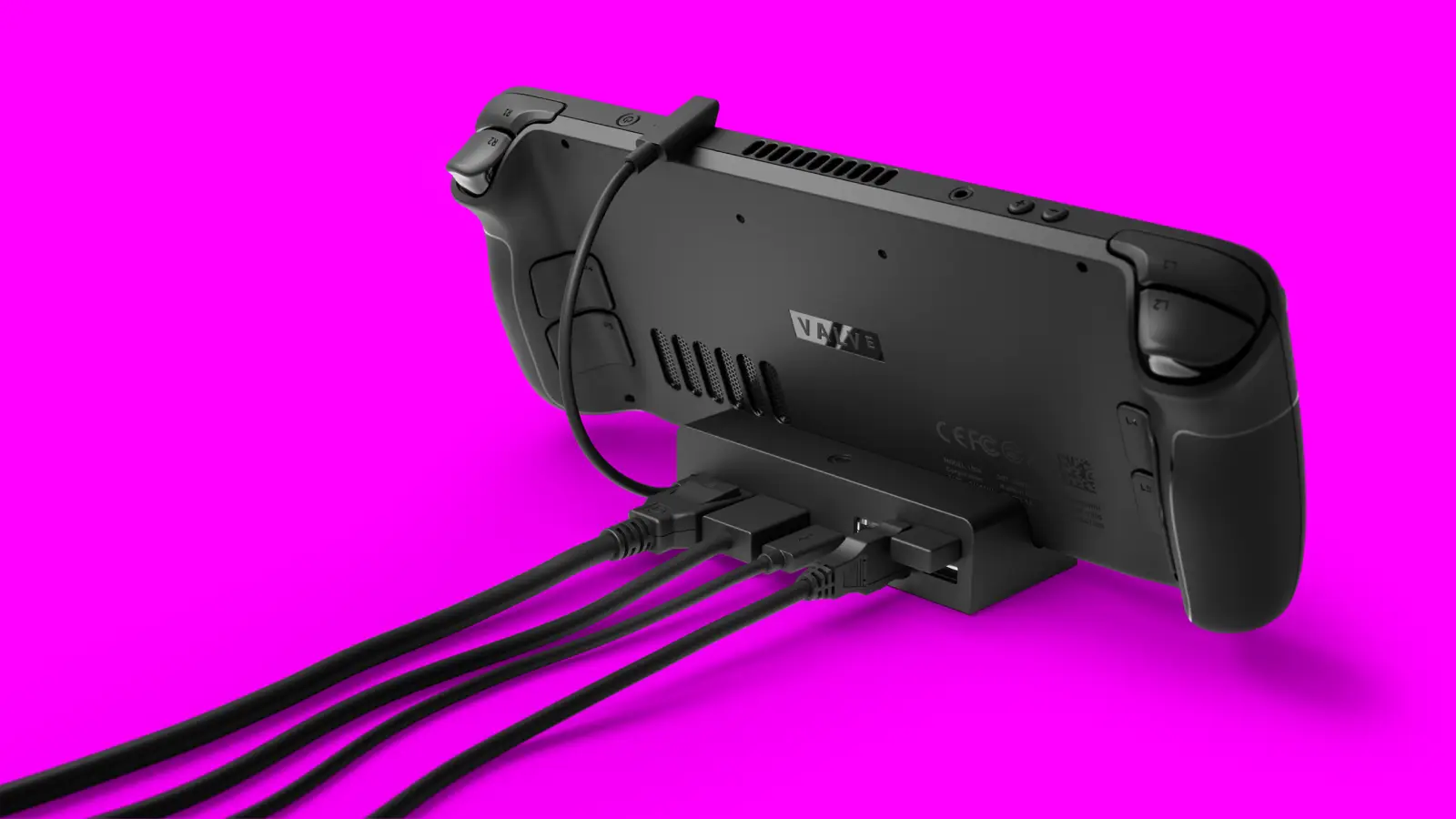
Summary
If you want your Steam Deck to double as a real desktop, a good dock is non-negotiable. The official Valve Dock is the safest pick if you just want stable dual 4K output and a clean desk. If you need gigabit ethernet, more USB ports, or you’re on a budget, JSAUX and Dbrand’s docks cover those cases better. Skip the cheap no-name USB-C hubs unless you enjoy random disconnects mid-game.
Why Docking the Deck Actually Makes Sense
I didn’t take docking seriously until Egor set his Deck up next to his monitor for a weekend and never touched his desktop again. Valve’s whole pitch with SteamOS’s desktop mode is that the Deck can be a real Linux/gaming PC when you’re home, and a handheld the second you unplug it. A dock is what makes that promise actually usable: without one you’re stuck with a single USB-C port doing double duty for power, video, and peripherals, which gets old fast.
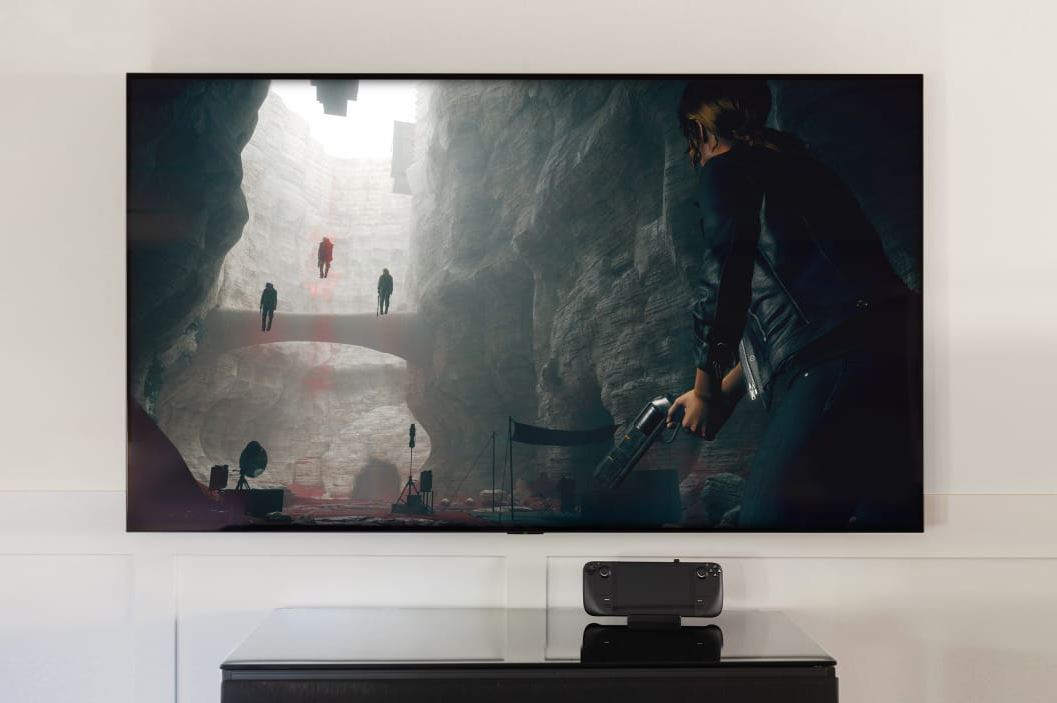
What a dock buys you: simultaneous charging, video out to an external display, and enough USB ports for a keyboard, mouse, and maybe an external drive at the same time. Some also add ethernet, which matters more than people think, since the Deck’s Wi-Fi chip isn’t its strongest component.
Valve’s Official Steam Deck Dock
Valve’s own dock is the boring, reliable choice, and I mean that as a compliment. It gives you one HDMI 2.0 and one DisplayPort 1.4 output (so yes, dual-monitor is on the table), three USB-A 3.1 ports, gigabit ethernet, and 85W of pass-through charging. It’s built specifically for the Deck’s firmware, so you don’t get the weird handshake issues some third-party docks have on cold boot.
The catch is price: it’s pricier than most third-party alternatives for what’s essentially a fixed-function hub. If you just want something that works every single time without babysitting it, though, that premium buys peace of mind.
JSAUX and Dbrand: The Third-Party Favorites
JSAUX has built a solid reputation in the Deck accessory space for a reason: their docks (the HB0403 and the newer M.2 SSD dock in particular) tend to add ports the official dock skips, like extra USB-C and SD card slots, and some models let you slot in your own M.2 SSD for cheap expandable storage. That’s genuinely useful if your Deck’s internal storage is already full of Proton prefixes.
Dbrand’s Killswitch dock takes a different angle: it’s built around removing the Deck from its case entirely and locking it into a dedicated desktop cradle, which feels more like a docking station for a laptop than a simple hub. It’s pricier and more of a commitment, but if you’re building a semi-permanent desk setup, it’s worth a look.
Both brands update their firmware and compatibility more often than the random hubs flooding Amazon, which matters since SteamOS updates occasionally change how USB-C alt modes get negotiated.
What to Avoid
- Generic no-name USB-C hubs with no reviews specific to Steam Deck compatibility.
- Docks that don’t clearly list wattage for pass-through charging (you’ll end up slowly draining the battery instead of charging it under load).
- Anything promising 8K or triple-display output: the Deck’s APU can’t drive that many pixels anyway, so you’re paying for a spec you’ll never use.
I learned the hard way that a bargain-bin hub can make the Deck refuse to boot into desktop mode with an external monitor attached. It’s the kind of problem that eats an evening for the sake of saving ten euros.
Setting It Up Without Headaches
Once you’ve got a dock, plug in the display first, then the Deck, and give SteamOS a few seconds to detect the new output before switching to Desktop Mode. If your monitor doesn’t show anything, try a different port on the dock: some units allocate bandwidth differently between DisplayPort and HDMI when both are active. For ethernet, the Deck should pick it up automatically over Wi-Fi disabled in Settings, which is worth doing anyway if you want a rock-solid connection for online games.
FAQ
Does any USB-C hub work with the Steam Deck?
Technically most will output some video, but many aren’t tested for the Deck’s specific alt-mode behavior, which causes random disconnects or failure to charge under load. Stick to docks with confirmed Deck compatibility.
Can I use two monitors with a Steam Deck dock?
Yes, with docks like Valve’s official one that expose both HDMI and DisplayPort simultaneously. Just don’t expect to run demanding games across both screens at once; the APU has limits.
Do I need a powered dock to charge the Deck while docked?
Yes. Look for at least 65W of USB-C Power Delivery pass-through, ideally 85W if you plan to game at full performance while docked, since gaming draws more power than the Deck can pull through a weaker charger.
Will a dock damage my Steam Deck’s USB-C port over time?
Not under normal use. The bigger risk is a loose or unbraced dock cradle putting sideways strain on the port, which is why cradle-style docks like Dbrand’s Killswitch are built to support the Deck’s weight directly.
The Verdict
My honest take: if you just want it to work and don’t mind paying for that certainty, get Valve’s official dock and stop thinking about it. If you’re building a proper desk setup with extra storage or more ports, JSAUX’s lineup gives you more for less. Skip the unbranded hubs entirely; the money you save isn’t worth the evening you’ll lose troubleshooting a black screen.